Race certificate creation
Race certificate creation
In the DistantRace platform, it is possible to automatically generate virtual certificates for finishers. #
Built-in design editor removed
The manager no longer includes an in-browser certificate/diploma editor (background upload and drag-and-drop fields). Design your layout externally as a PowerPoint (PPTX) file and upload it — DistantRace fills the placeholder fields when generating each participant's document.
It’s quite simple to do. Here is a short instruction:
1. Open the race certificate view #
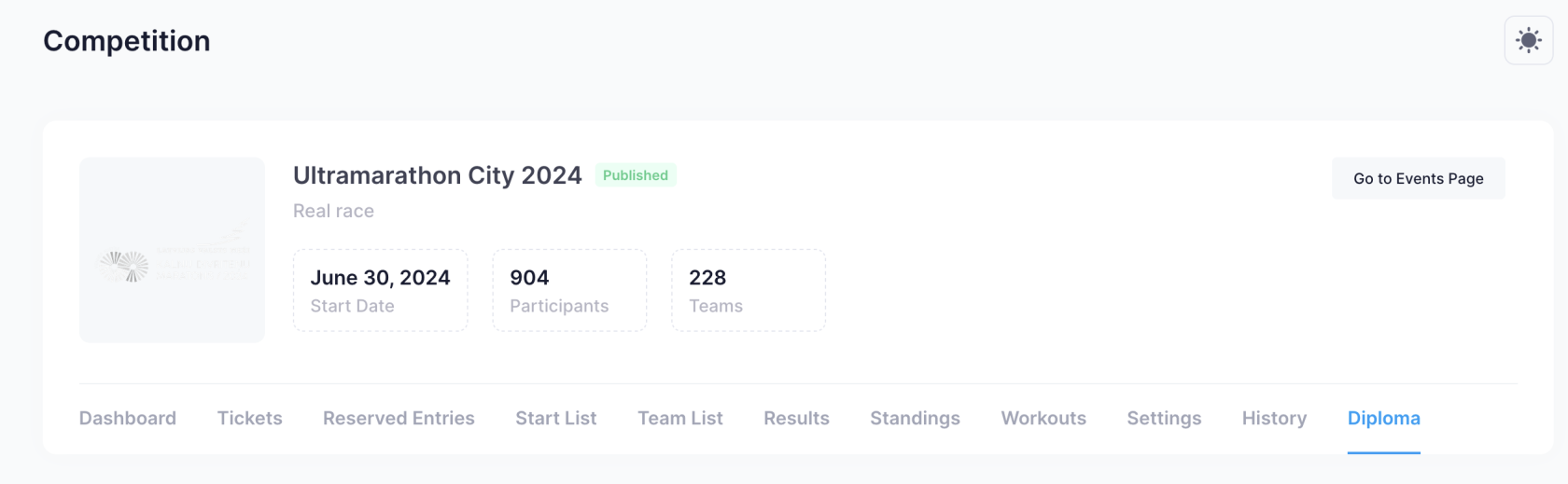
In this view, you will be able to see all distances by blocks and download the PPTX file for the certificate design for each one.
2. Create the certificate design #
The certificate design must be created in PPTX format (Microsoft PowerPoint). Specific text fields in the design will be automatically replaced.
Automatic Fields
| Field | Race/Challenge | Description |
|---|---|---|
| [EVENT NAME] | Race & Challenge | Event (Competition or Challenge) name |
| [COMPETITION] | Race | Competition name |
| [PARTICIPANT NAME] | Race & Challenge | Participant’s full name |
| [Participant Name] | Race & Challenge | Participant’s full name formatted with each word starting with a capital letter |
| [NR] | Race | Participant’s starting number |
| [DISTANCE] | Race | Name of the race distance |
| [GROUP] | Race & Challenge | Name of the participant’s group |
| [TEAM] | Race & Challenge | Team name |
| [FINISH DATE] | Race & Challenge | Date the race or challenge was completed |
| [RESULT] | Race | Finish time in the format HH:MM:SS.m |
| [CH_RESULT] | Race | Chip time in the format HH:MM:SS.m |
| [P_D] | Race | Place in the distance |
| [P_GR] | Race | Place in the group |
| [C_D] | Race | Number of participants in the distance |
| [C_GR] | Race | Number of participants in the group |
| [AVG_SP] | Race | Average speed |
| [LAP_0] | Race | Lap time 1 |
| [LAP_1] | Race | Lap time 2 |
| [LAP_2] | Race | Lap time 3 |
| [LAP_3] | Race | Lap time 4 |
| [LAP_4] | Race | Lap time 5 |
| [TIME] | Challenge | Total time spent in the challenge |
| [KM] | Challenge | Total kilometers covered |
| [STEPS] | Challenge | Total number of steps |
| [RANK] | Challenge | Overall result |
| [GRANK] | Challenge | Group result |
| [T P] | Challenge | Total points |
| [T E] | Challenge | Total energy |
If a distance has more than five laps, additional lap fields continue the same pattern: [LAP_5], [LAP_6], and so on.
Design Samples
Designs can be created in PowerPoint, but you can also use the service canva.com, where many race certificate designs are available: https://www.canva.com/templates/?query=race-certificate.
How to use canva.com to create a new design?
-
Choose a design from the available templates: https://www.canva.com/templates/?query=race-certificate
-
Click “Customize this template”

- Once you have created the desired design and added the “automatic fields”, click “Share” -> “More”.
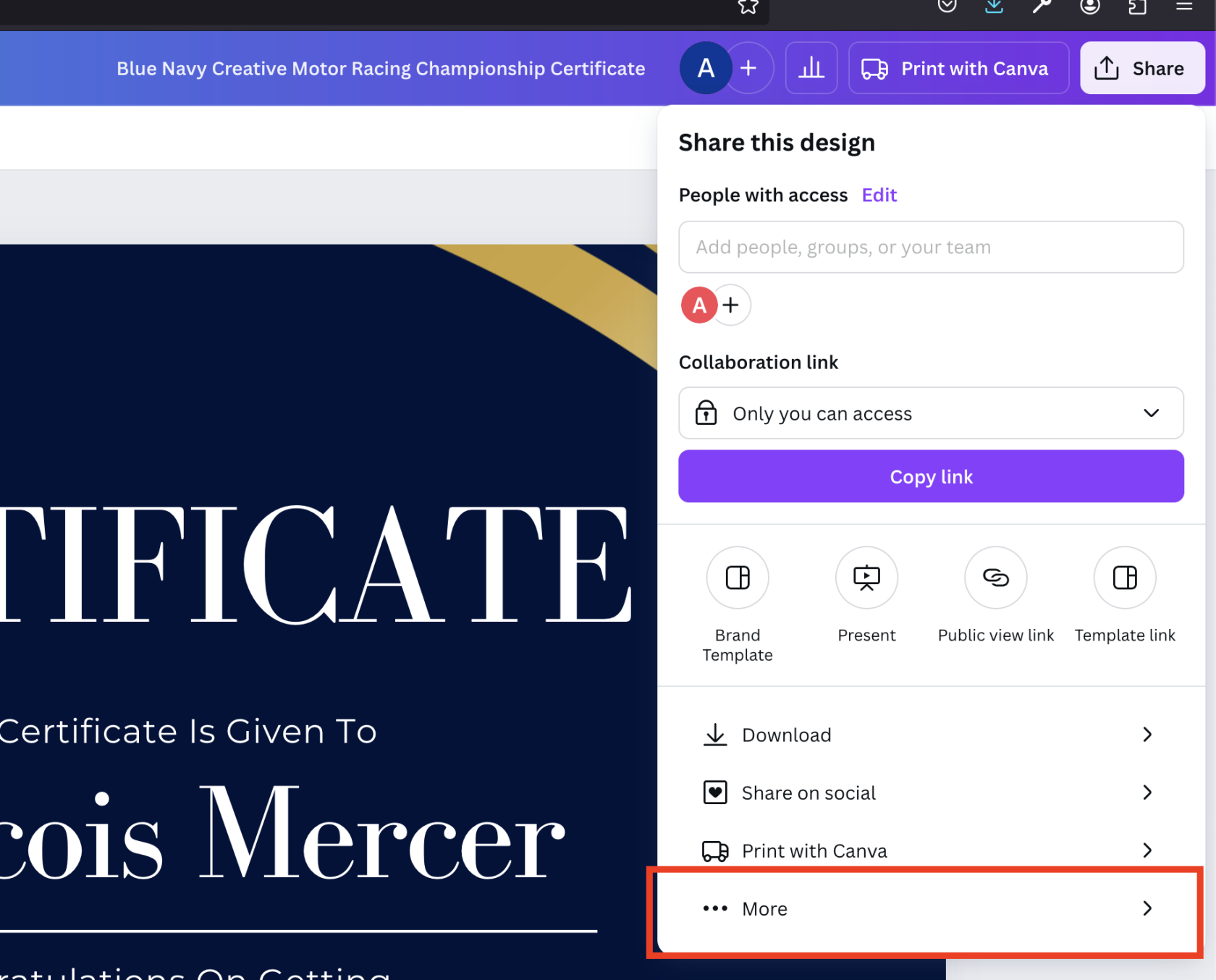
- In the list, select “Microsoft PowerPoint” and click “Download”

- This created design can now be added to distantrace.com and the created design sample can be viewed.
Some race certificate samples from canva.com
| Title | File | Sample |
|---|---|---|
| Colorful Modern Geometric Certificate of Participation | File |  |
| Orange Geometric Challenger Certificate Marathon | File |  |
Adding Certificates to DistantRace
Deleting Certificates
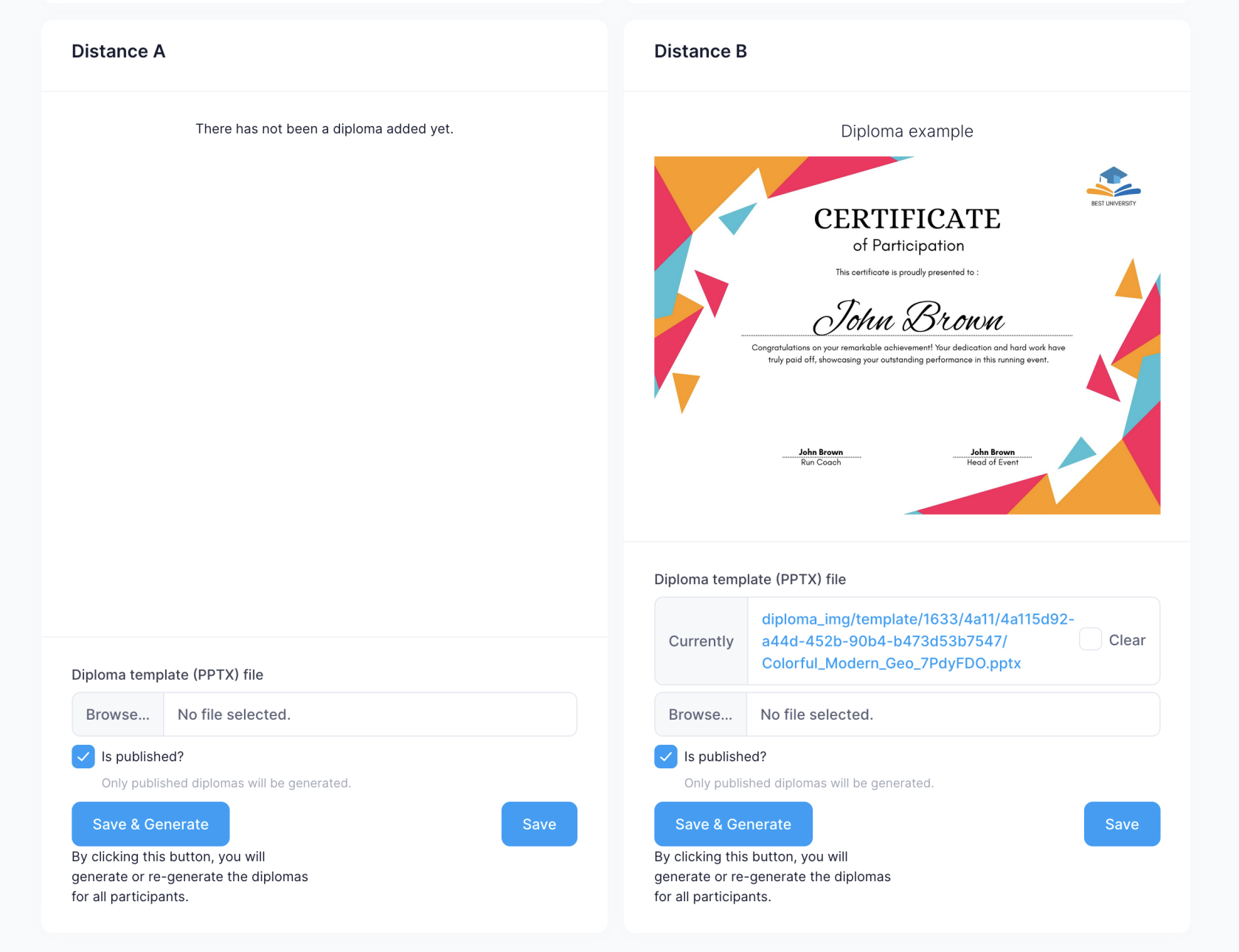
To delete a certificate, check the “Clear” field and click the “Save” button.
Publishing a Certificate
If “Is Published?” is checked, a certificate will be automatically generated for the participant after results are added.
Adding a New PPTX File
Click the “Browse…” button, select the certificate, and click “Save.” After clicking “Save,” a visual sample is automatically created - this can take up to a minute. If a specific font is used that displays incorrectly, please send the font to support@distantrace.com for it to be added to the system.
Generate Certificates for Participants
If results are already added for participants, you can add a virtual certificate for participants by clicking “Save & Generate.” If the participant already has a certificate, it will be regenerated.