How to create diplomas for all participants?
How to create diplomas for all participants?
DistantRace generates virtual diplomas for step challenge participants from a PowerPoint (PPTX) template you design externally. Placeholder text in the design is replaced with each participant's name, steps, rank, and other challenge data.
Built-in design editor removed
The manager no longer includes an in-browser diploma editor. Create your layout in PowerPoint, Google Slides (export as PPTX), or Canva and upload the .pptx file.
1. Open the challenge diploma page #
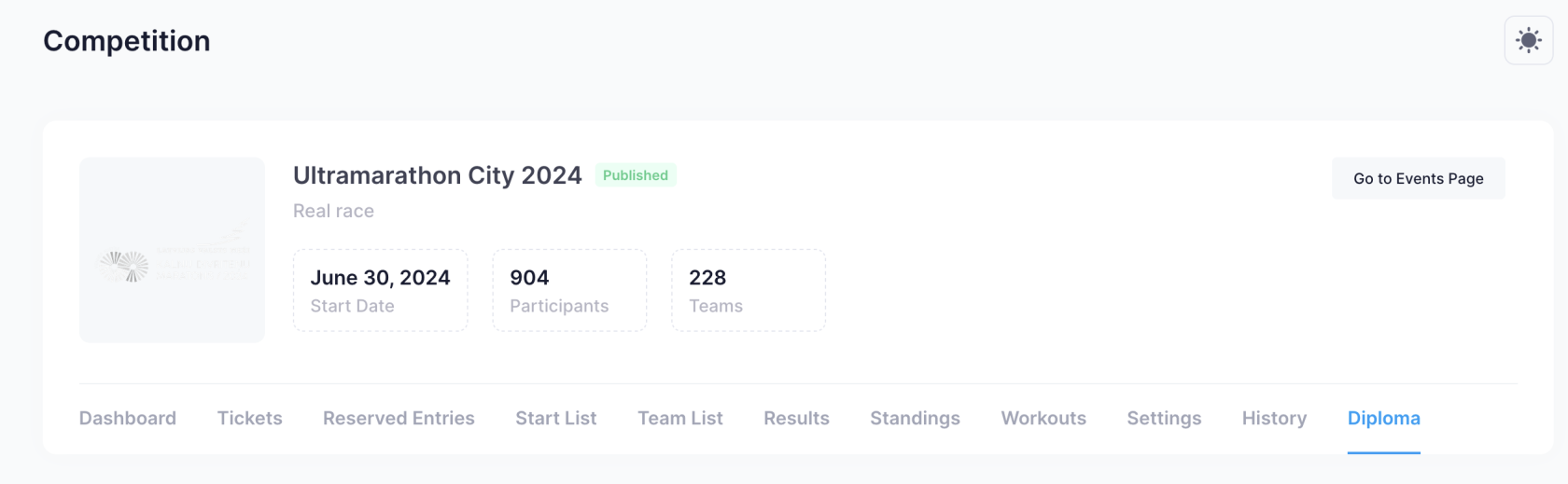
In the organizer console, open your step challenge and go to Diploma.
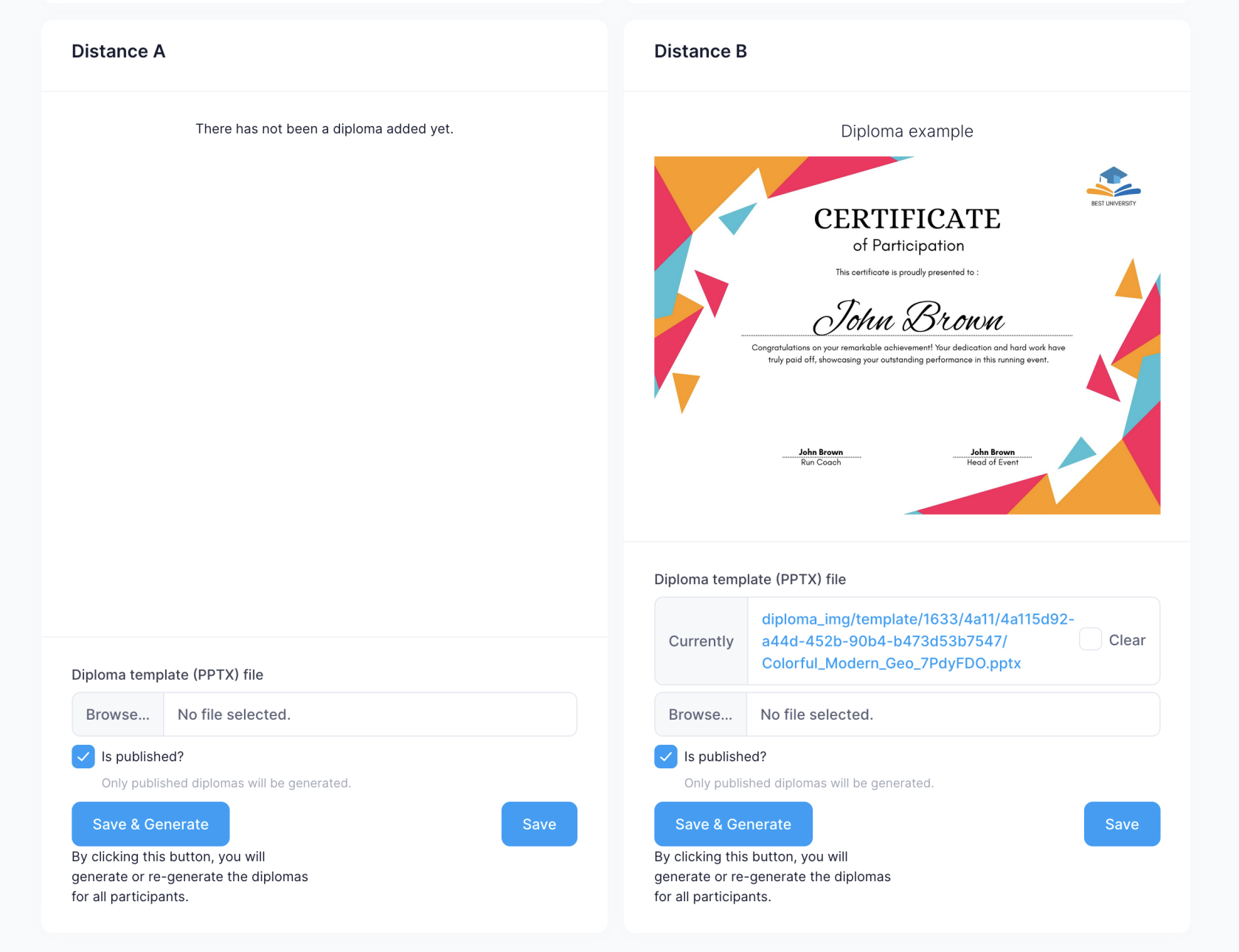
If no template is uploaded yet, the page shows a link to the full design guide. After upload, a preview image appears (generation can take up to a minute).
2. Create the PPTX design #
Design the diploma in PPTX format. Add placeholder fields as plain text — DistantRace replaces them when generating each participant's diploma.
Fields for step challenges #
| Field | Description |
|---|---|
[EVENT NAME] |
Challenge name |
[PARTICIPANT NAME] |
Participant's full name |
[Participant Name] |
Full name with each word capitalized |
[GROUP] |
Participant's standings group |
[TEAM] |
Team name (if applicable) |
[FINISH DATE] |
Date of the participant's last synced activity |
[STEPS] |
Total steps (formatted with thousands separators) |
[KM] |
Total distance covered |
[TIME] |
Total active time in the challenge |
[RANK] |
Overall standing |
[GRANK] |
Standing within the participant's group |
[T P] |
Total points |
[T E] |
Total energy |
For design tips, Canva export steps, and sample templates, see Race certificate creation — the same PPTX workflow and field syntax apply to challenges.
3. Upload and publish #
- Click Browse…, select your
.pptxfile, and click Save. - Wait for the preview to appear, then refresh if needed.
- Check Is published? so diplomas generate automatically for participants.
- When standings are ready, click Save & Generate to create or regenerate diplomas for all challenge participants.
Custom fonts
If a font in your design renders incorrectly in the preview, email the font file to support@distantrace.com so it can be added to the system.
4. Participants download their diploma #
Once the challenge standings are live and diplomas are generated, participants find their diploma on their result or challenge profile page. See Downloading diplomas and certificates.
Related #
- Diplomas and finisher documents — overview for races and challenges
- Race certificate creation — full PPTX design guide with samples
- Managing challenge participants
- Publishing results