Create a step challenge
Create a step challenge
Create the event #
- Open your club in the manager console.
- Click Create new Event.
- Step 1 — Base data: event name, start date, duration in days, main language.
- Step 2 — Challenge type: select Step challenge (featured bestseller option).
- Click Create.
You are redirected to the challenge settings walkthrough. A default step game is created automatically.
Participant app required
Step challenges need the DistantRace mobile app for daily step sync. Share the onboarding page.
Configure during walkthrough #
Complete dates, languages, teams, virtual map, goals, and Easy Access sharing. See Challenge settings reference for every option.
The sections below document individual settings in detail (teams, virtual route, stages, payments, etc.).
Detailed settings #
Virtual Route #
To make the challenge more interesting, you can choose a virtual route that participants can follow.
Such a route makes the challenge more interesting and engaging for participants.
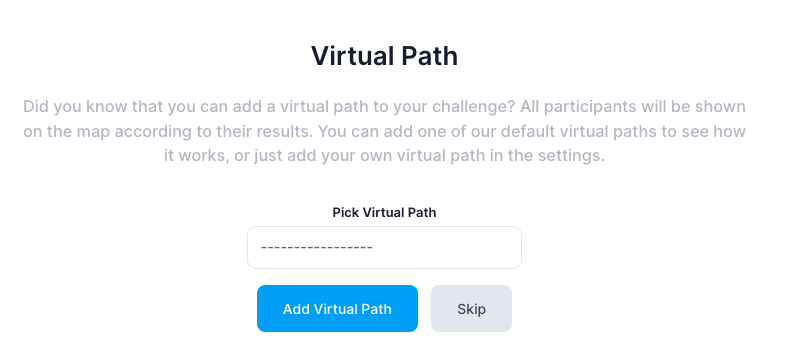
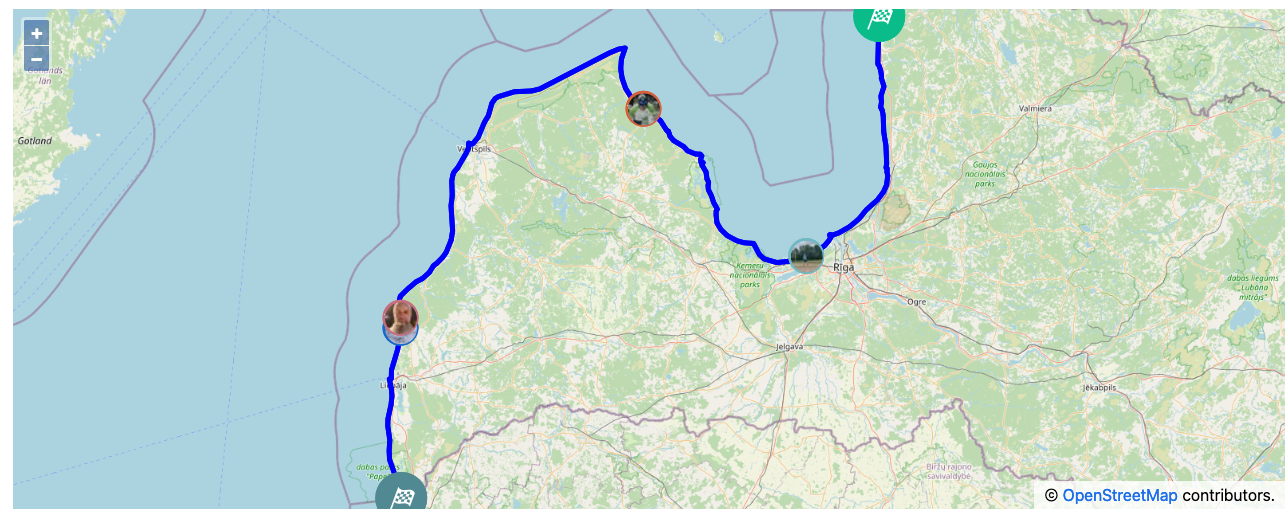
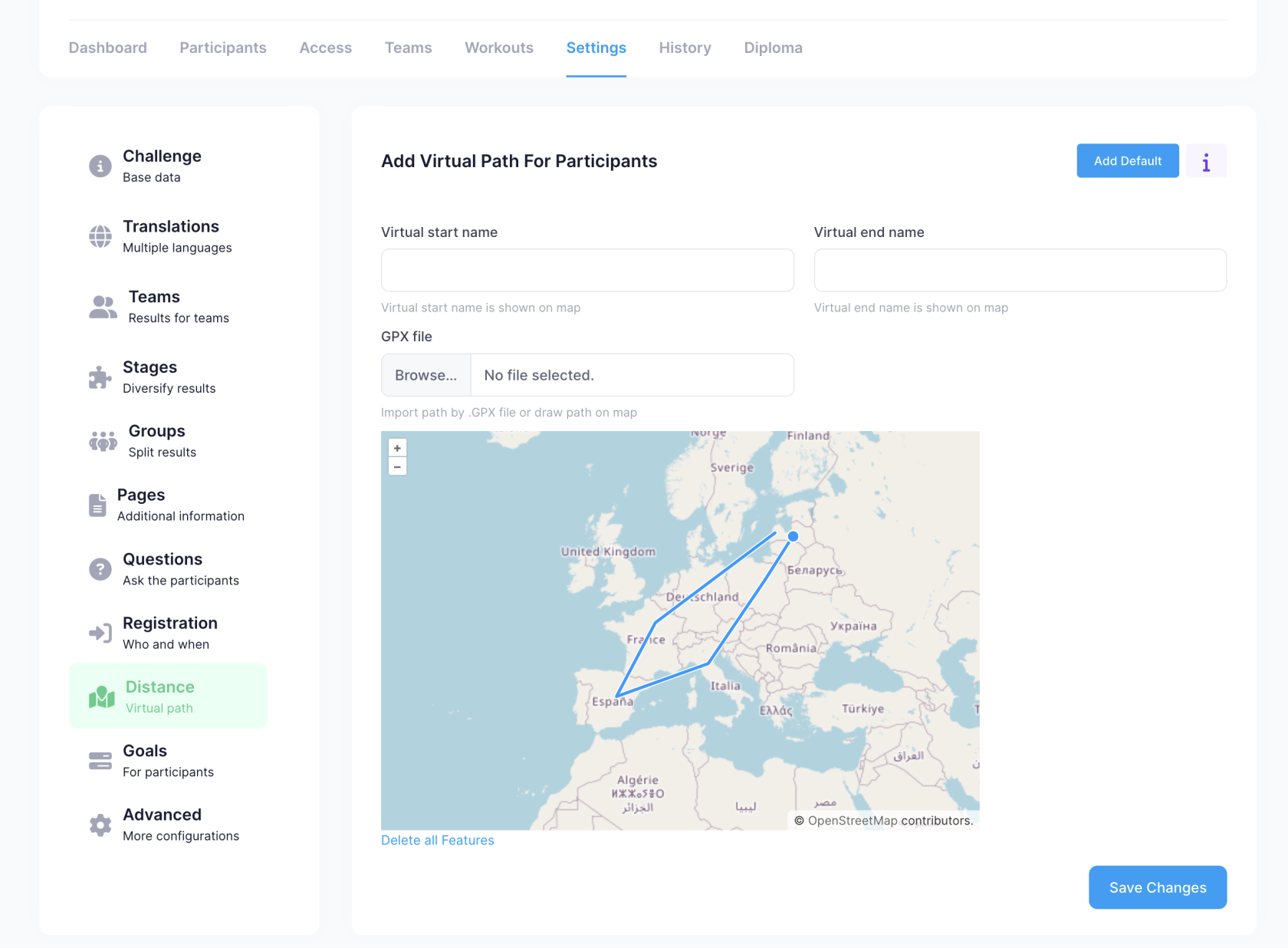
You can also specify the name of the start place and the end place in the virtual route.
Teams #
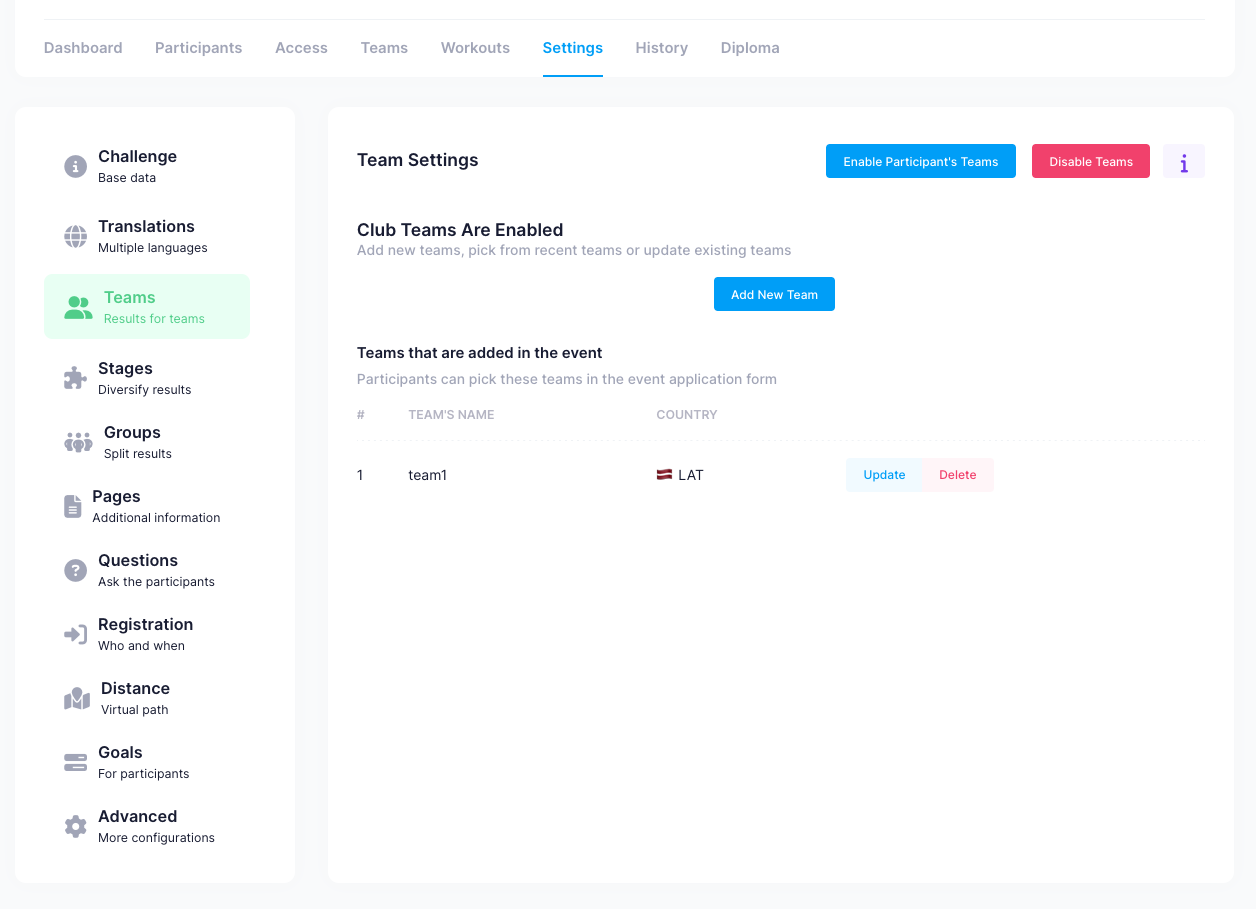
In the challenge, it is possible to create teams. Results will be shown both individually and by teams.
There are 2 types of teams:
- Participants create their own teams.
- The organizer predetermines the teams.
In case the teams are company departments or divisions or branches, then the organizer should prepare them. On the other hand, if you want teams to be created by the participants themselves, then this is also possible.
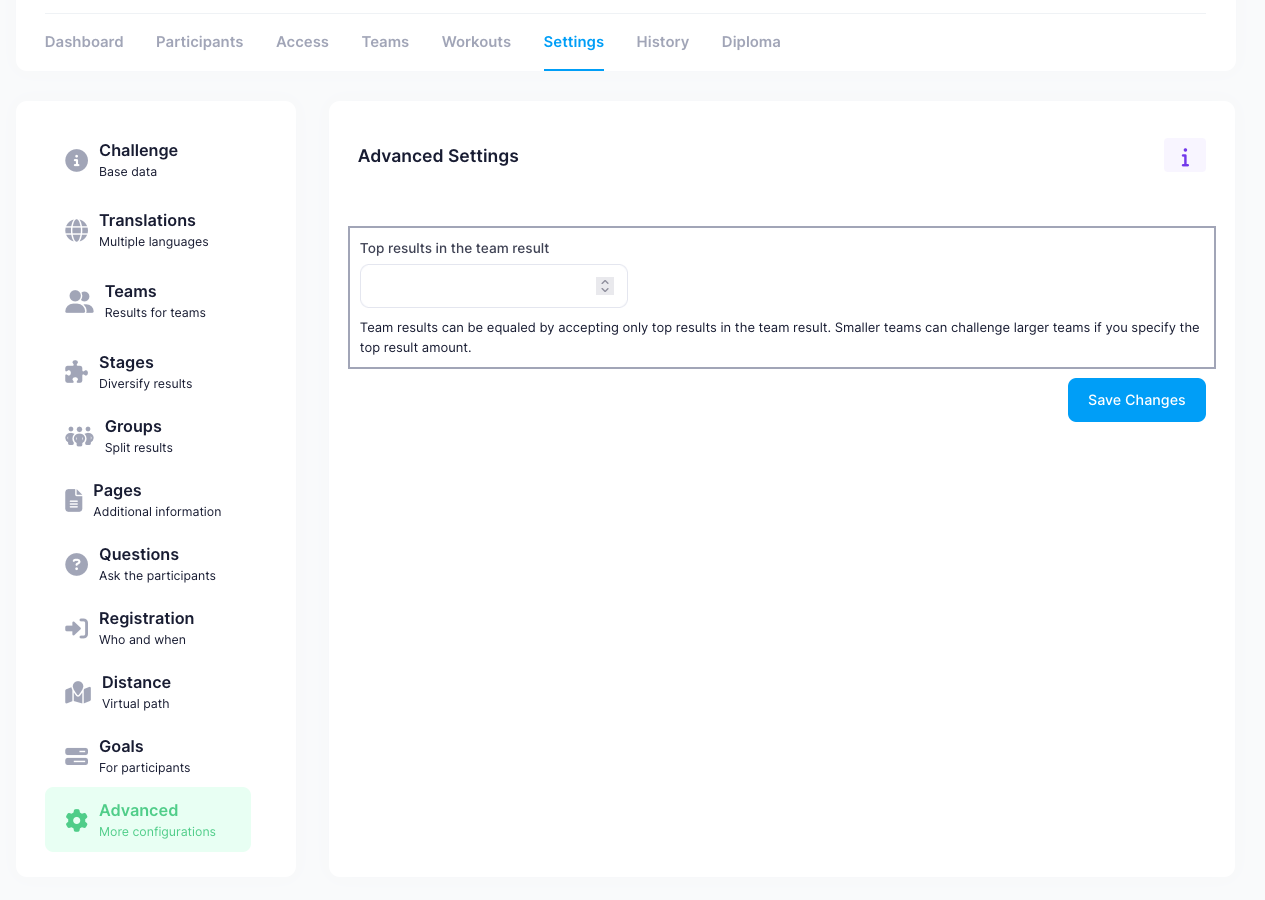
If it is expected that each team will have a different number of participants, you can define how many of the team's participants will be included. For example, if team A has 50 participants, but team B has 20 participants and it is indicated that only 20 participants will be included in the team, then only the 20 participants with the best results will be considered in both teams.
It is also possible to place the participants in teams in a "random" way after applying. To do this, contact support@distantrace.com.
Change Event Information #
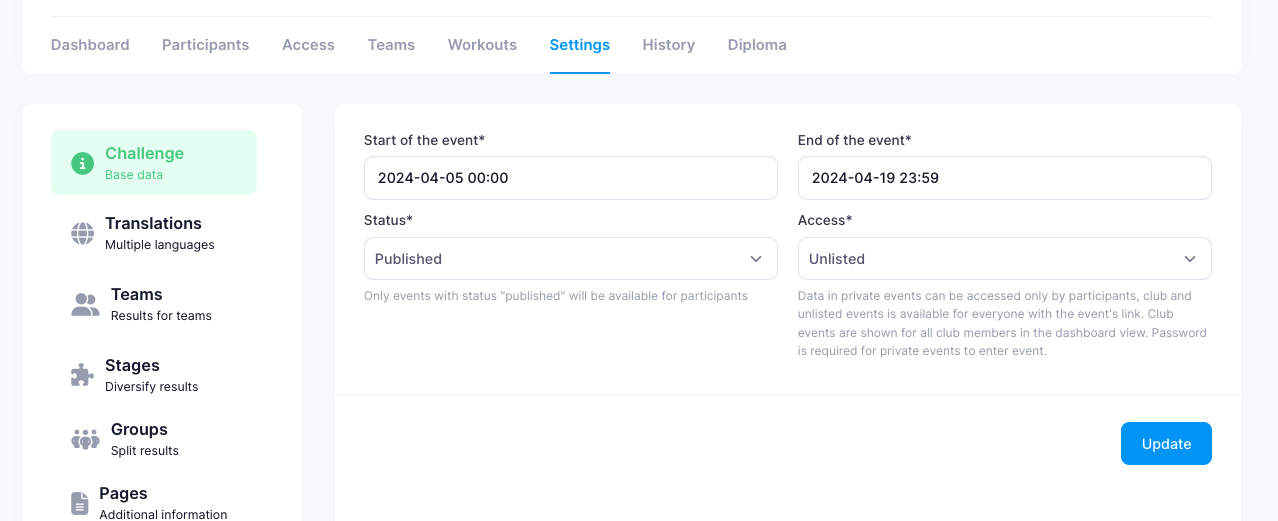
In the challenge settings, you can change both the start time and the end date and time.
In addition, you can mark the status of the event:
- Published - Published and available.
- Unpublished - Not published. This can be used if the created event needs to be removed so that it is no longer available.
- Cancelled - If the event is cancelled, we can set this status.
In addition to this, you can define who the event is visible to. DistantRace has several levels:
- Public - Found on the homepage for any visitor. This status can only be set by a DistantRace consultant.
- Show for club members - Events are visible to those participants who are your club members.
- Unlisted - The event is only available if you know the private link.
- Private - You can only join the event if you know the private link + you also need to know the joining password.
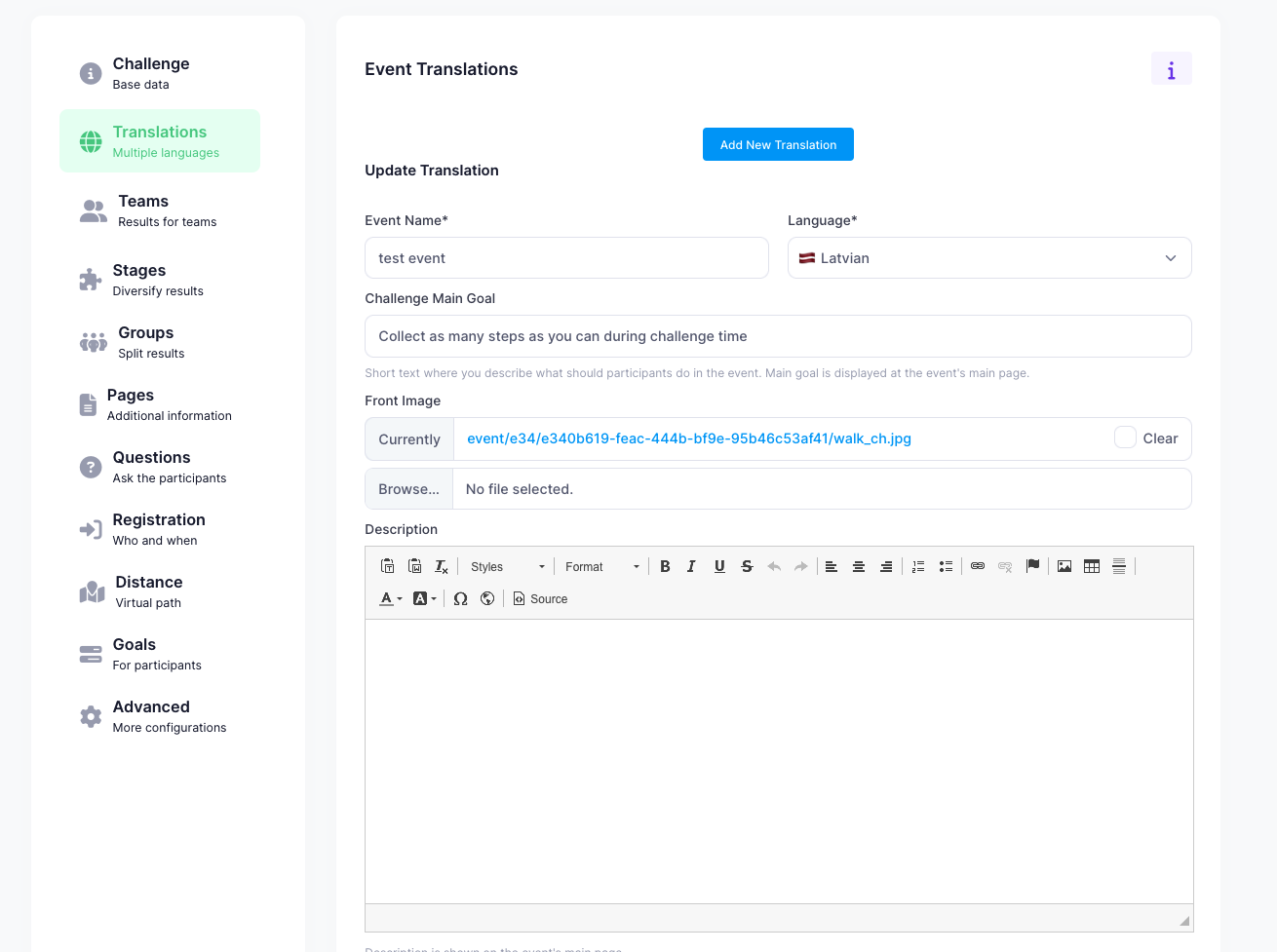
To change the name, add an image and add a description, go to the section "Event Customization". In this section, you can add the name and description of the created event in different languages.
Stages of the Sports Event #
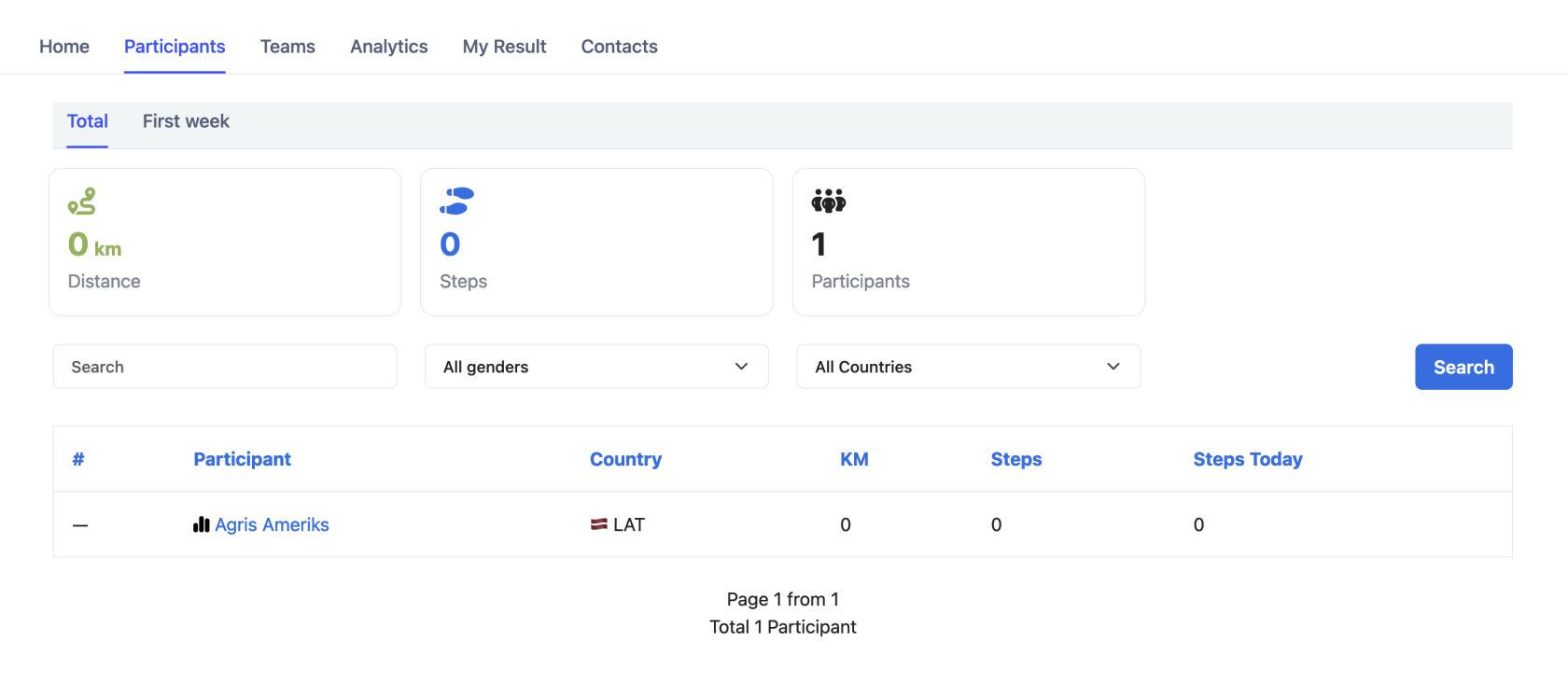
If we want to create a step challenge for the whole summer, but each month we want to see a winner, then we can create "Intermediate Results". You can find this in the "Stages" section.
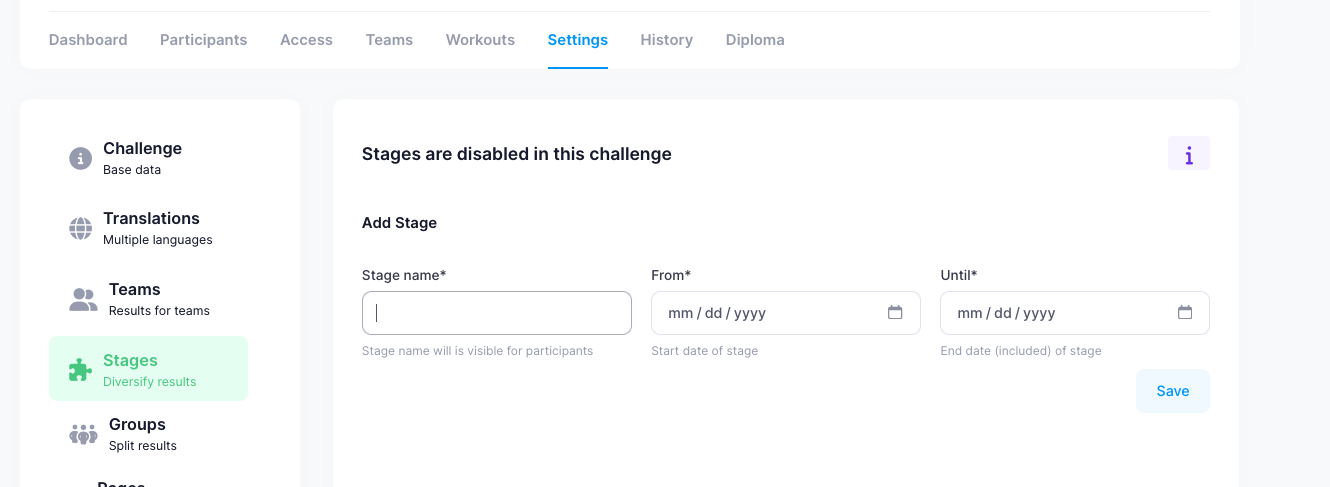
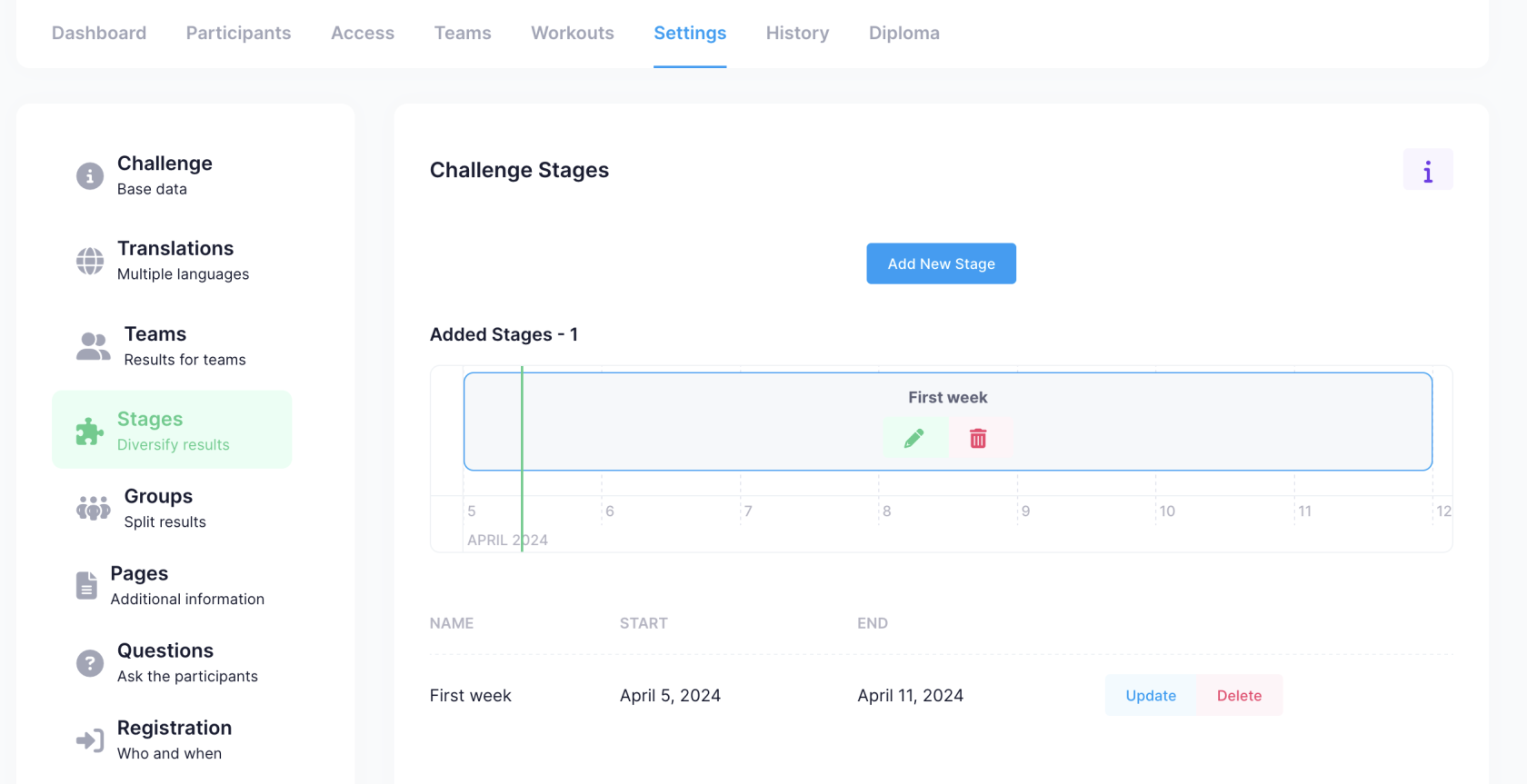
When the stages are added, they can be seen in the results list. Stage results will also appear for the teams.
Age Groups #
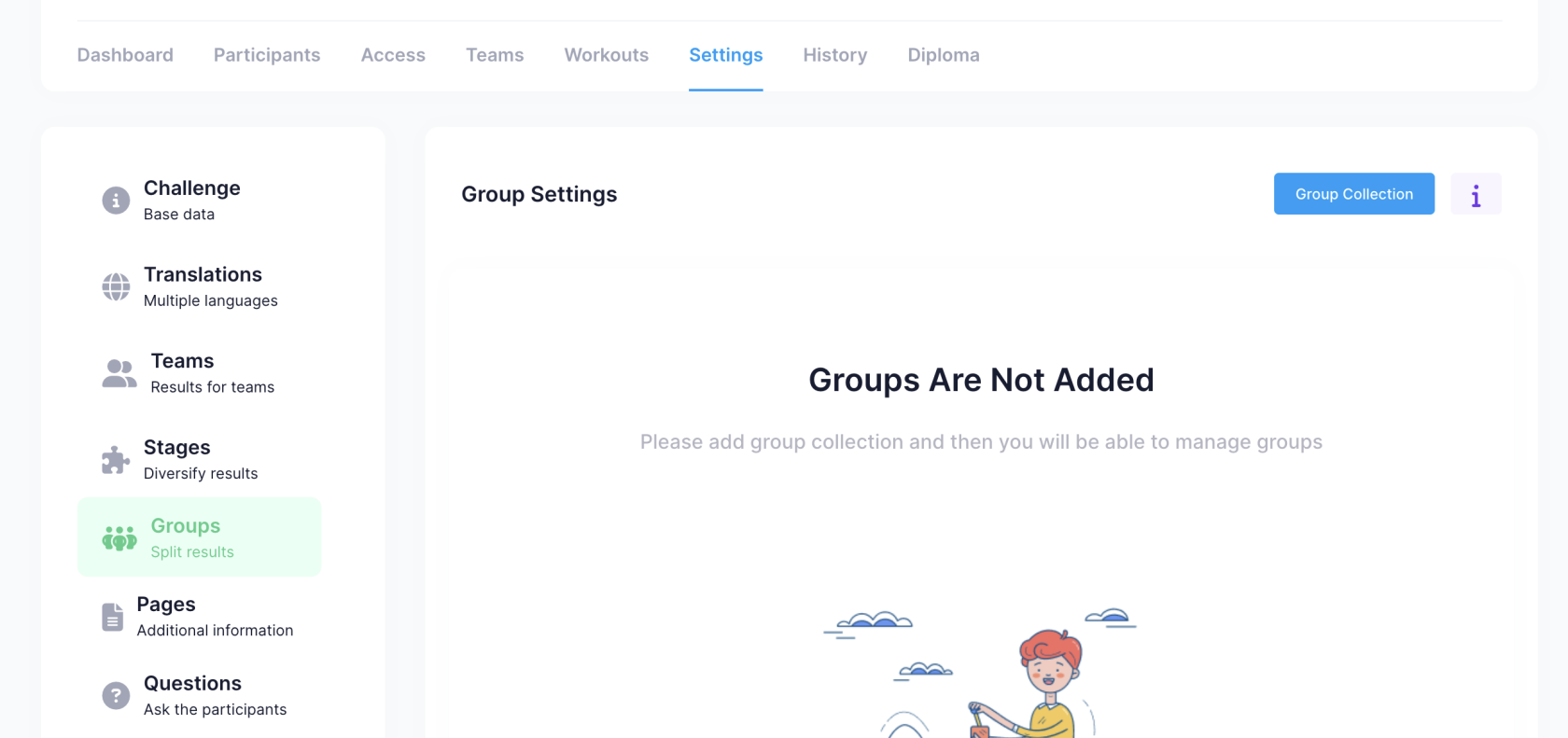
To make it more interesting for participants to compete among themselves, you can add age groups. Then it will be possible to view not only the total results, but also by age groups.
Groups can be defined in the "Groups" section.
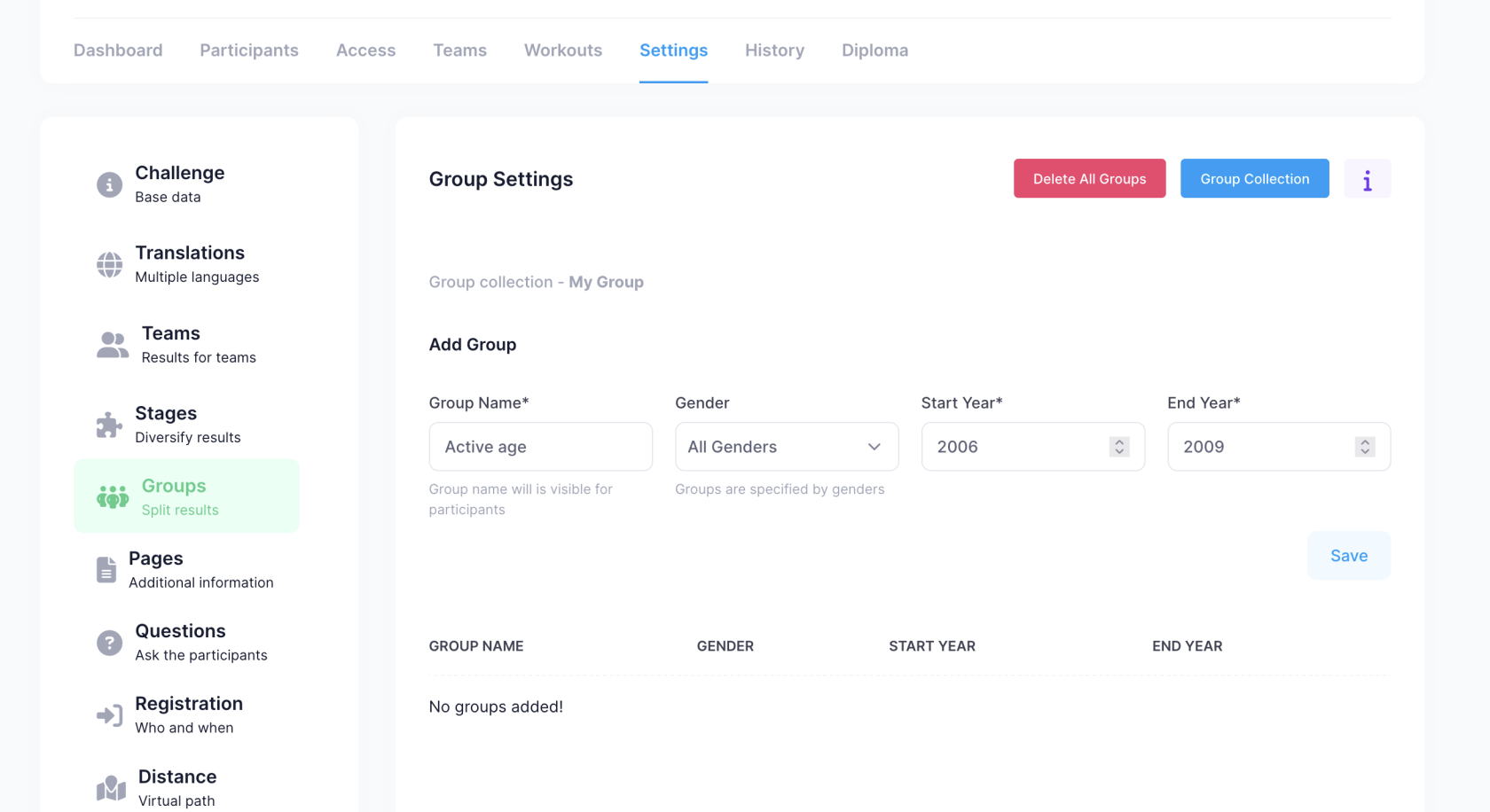
The challenge organizer defines age groups once, and they can be reused in other challenges. It's possible to specify not only birth years but also the gender, if needed.
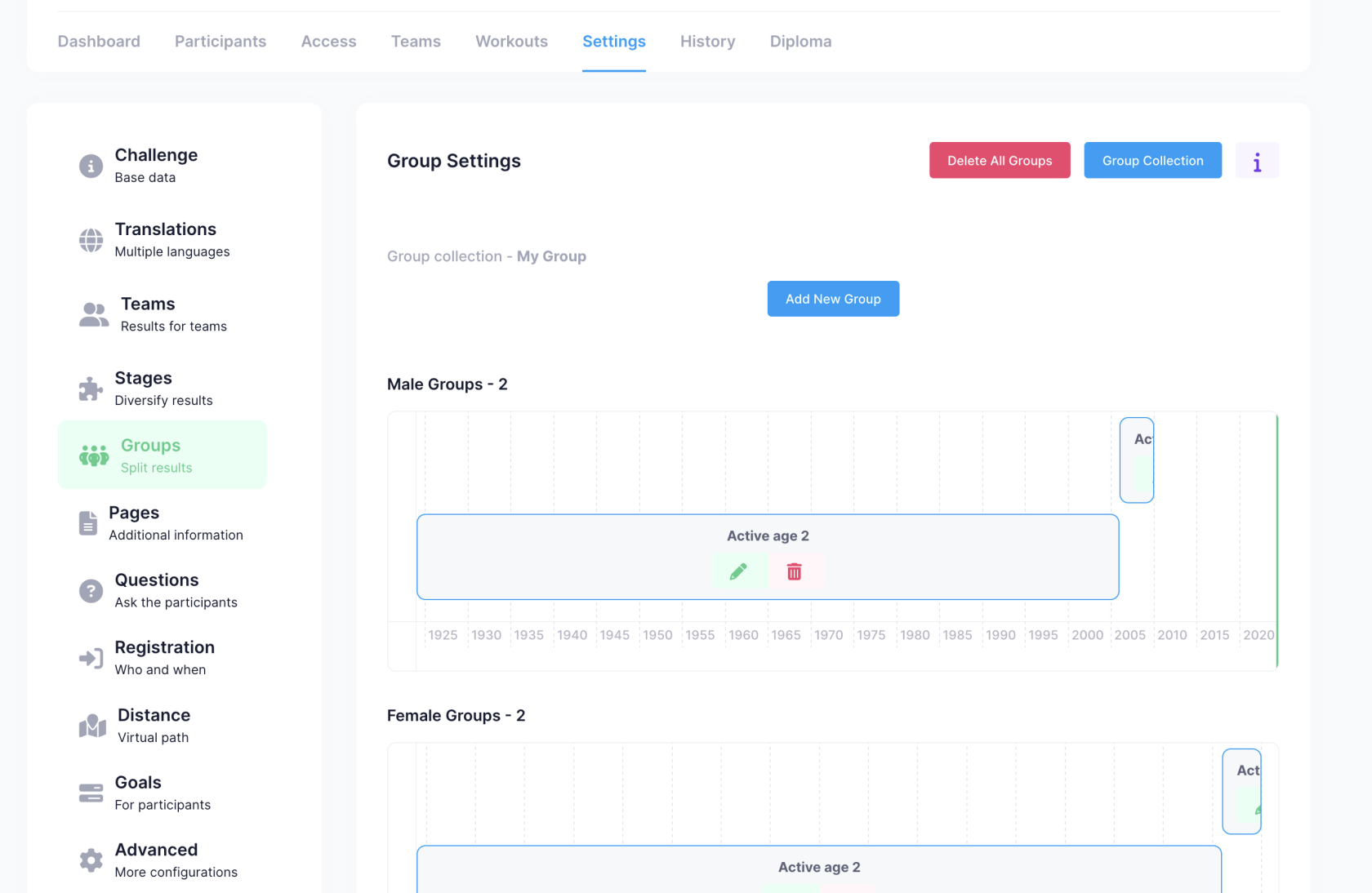
Once all age groups are added, they can be viewed in a simple way.
Additional Information Pages #
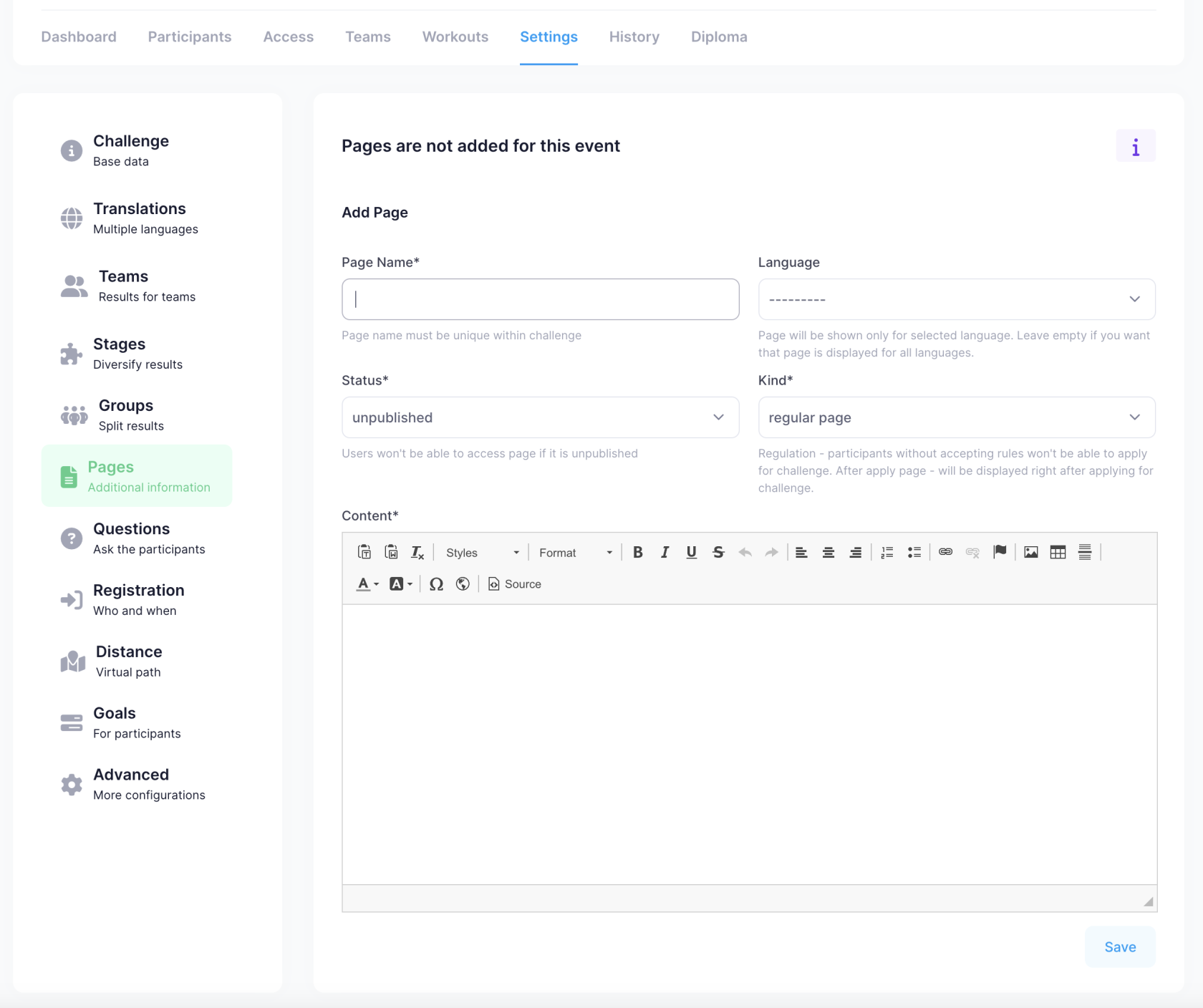
Each sports event can have additional informational pages added, for example, rules. If rules are added, the participant will need to agree to the rules when joining the event.
The pages have 3 types:
- Regular page - A standard informational page that can be viewed next to the "results" and other sections.
- After-apply page - Informational page that appears after registration for the challenge
- Regulation - The text of the rules that appears similar to the "Regular page", but additionally, the participant must agree to the rules before they can register for the challenge.
Additional Questions #
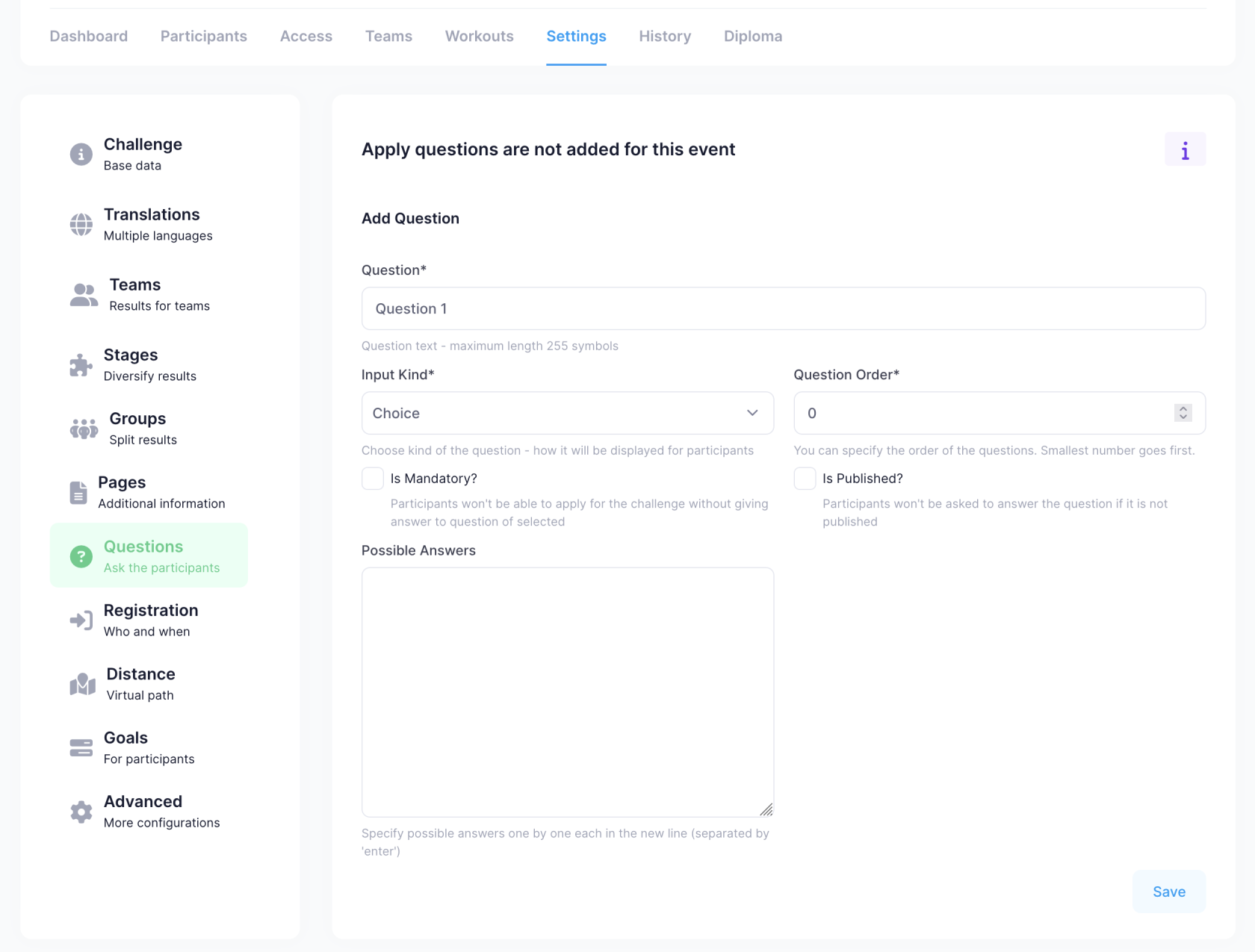
If you want the participant to answer additional questions when registering, then you can add such questions. Both order and obligation to answer can be defined for each question.
Question types:
- Text - Text field
- Choice - Selection field
- Yes/No - Choose Yes/No
- Number - Numerical field
If a selection field is chosen, then all possible values that the participant can choose from must be specified.
Registration Restrictions #
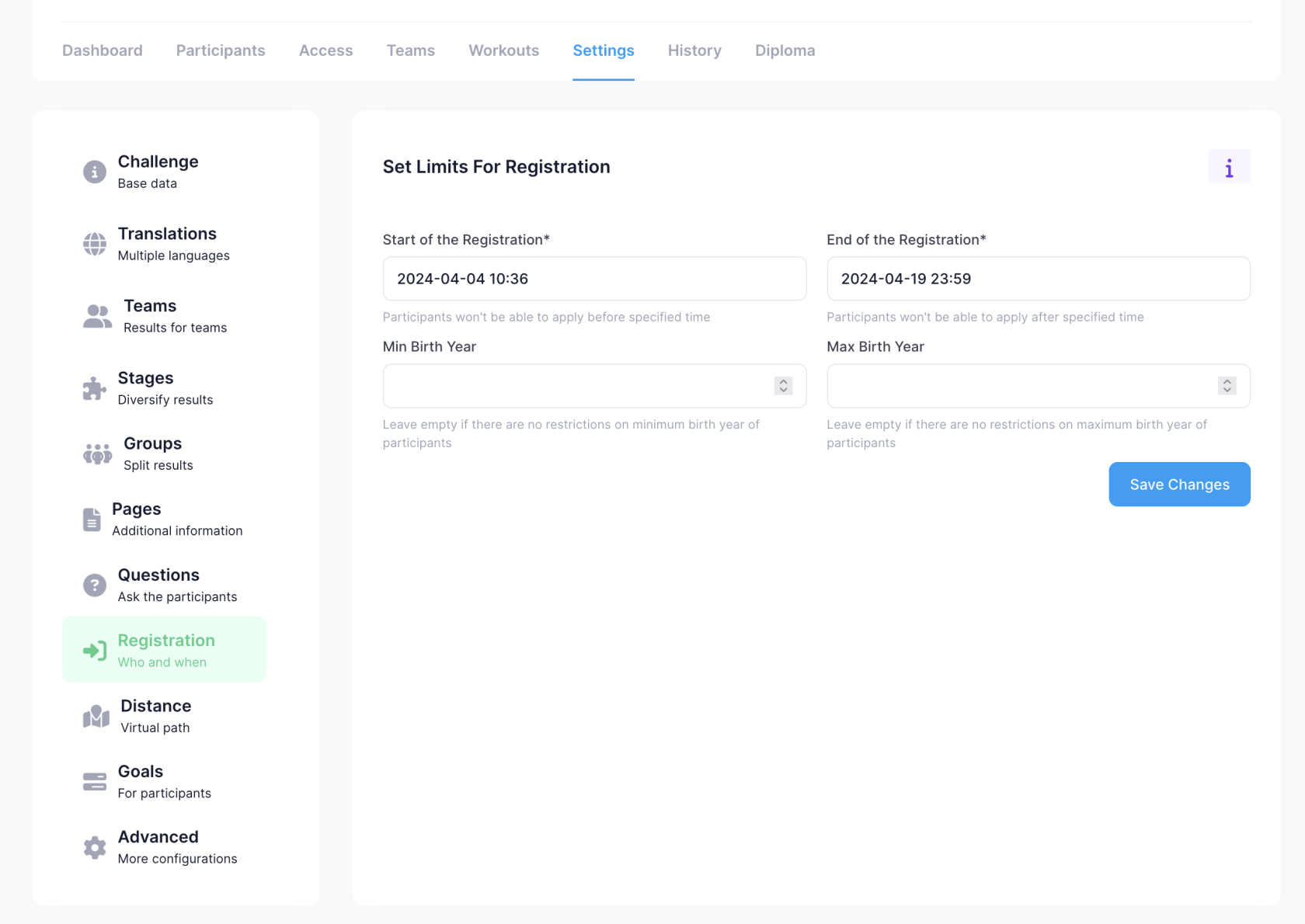
You can specify when registration is possible and when it should end, as well as the minimum/maximum birth year for who can register for the sports event.
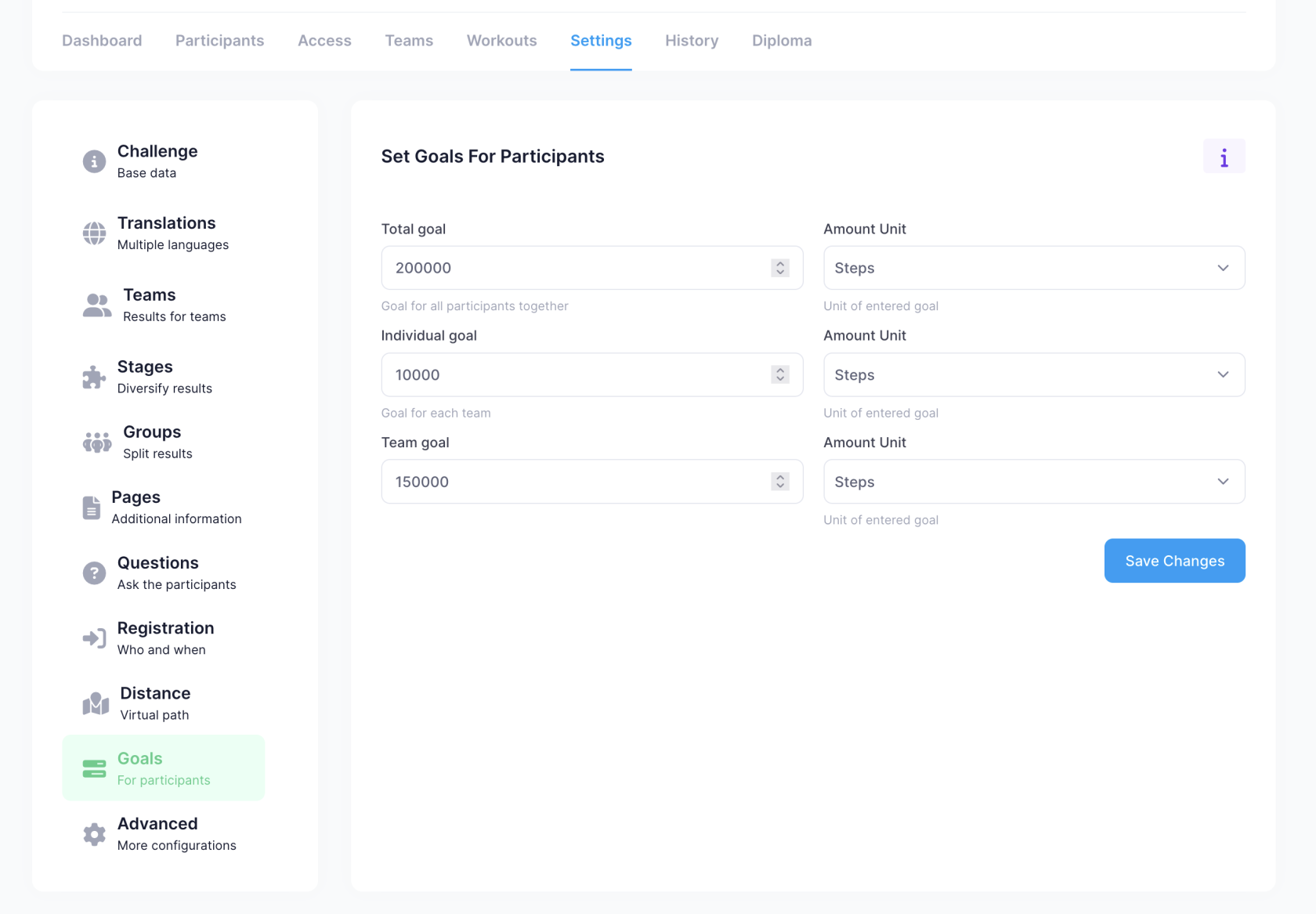
Objectives #
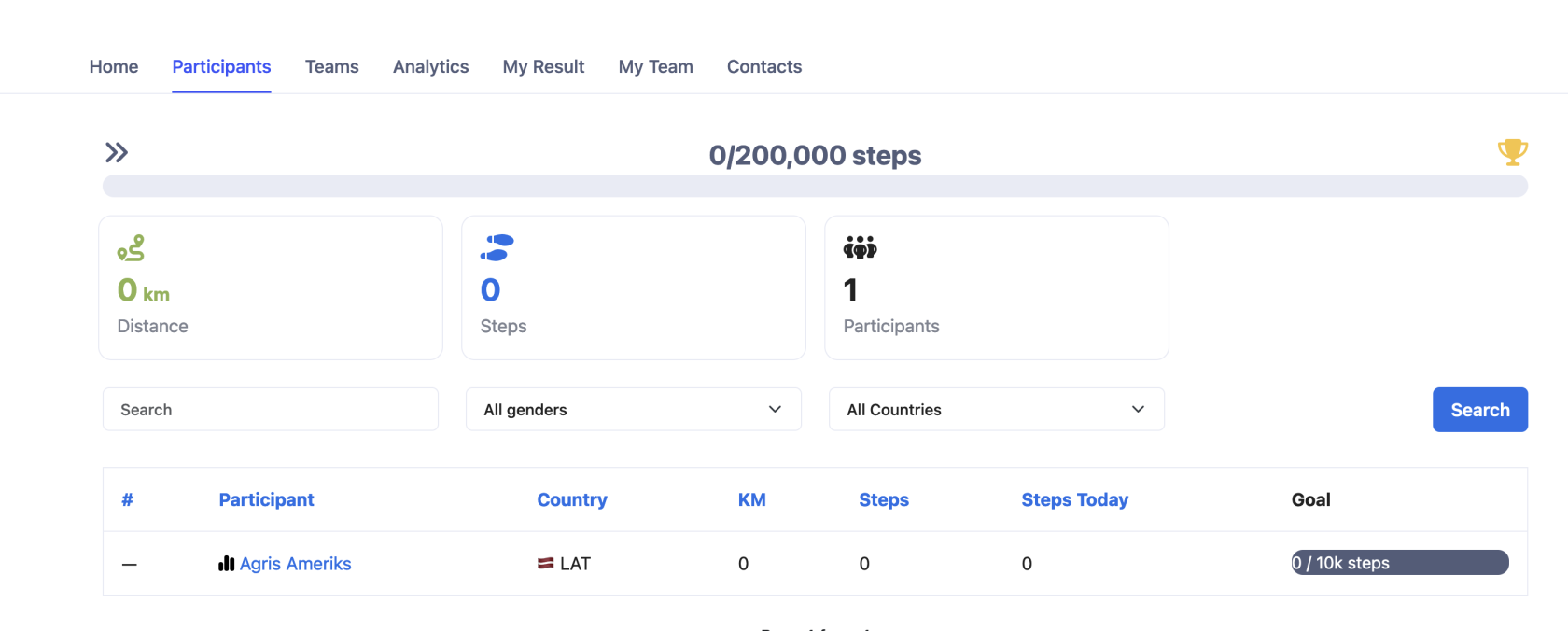
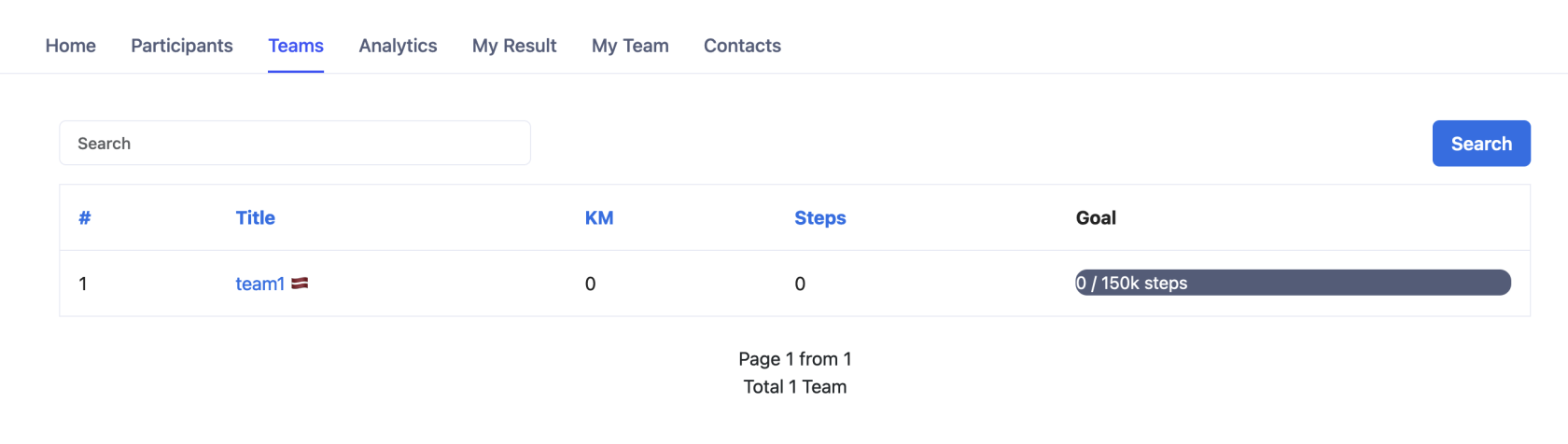
It is possible to define achievable step objectives in 3 categories:
-
Individual
-
Cumulative for everyone together
-
For each team