How to record a sports activity using the Adidas Running app
How to record a sports activity using the Adidas Running app
No longer available
Adidas Running (Runtastic) is no longer supported in DistantRace. See Supported apps for current options.
Recording workouts with the Adidas Running app is a user-friendly process, available for both Android and iOS users.
How to record a sports activity:
-
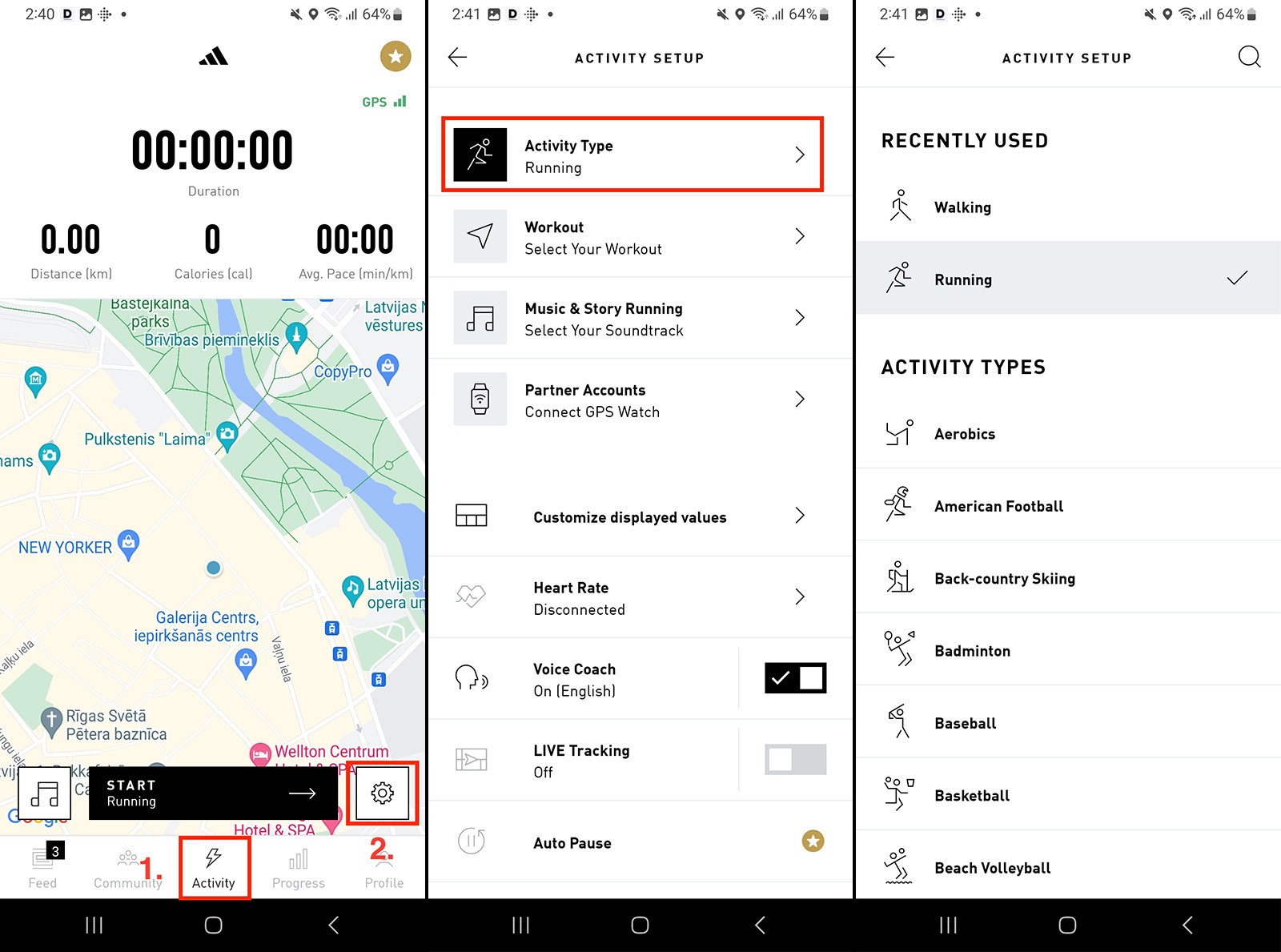
Tap on "Activity", located at the bottom of the app screen.
-
If you wish to change the sport type of your workout, tap on the settings icon.
-
In settings, find and tap on "Activity Type".
-
Choose your desired sport type from the available options.
-
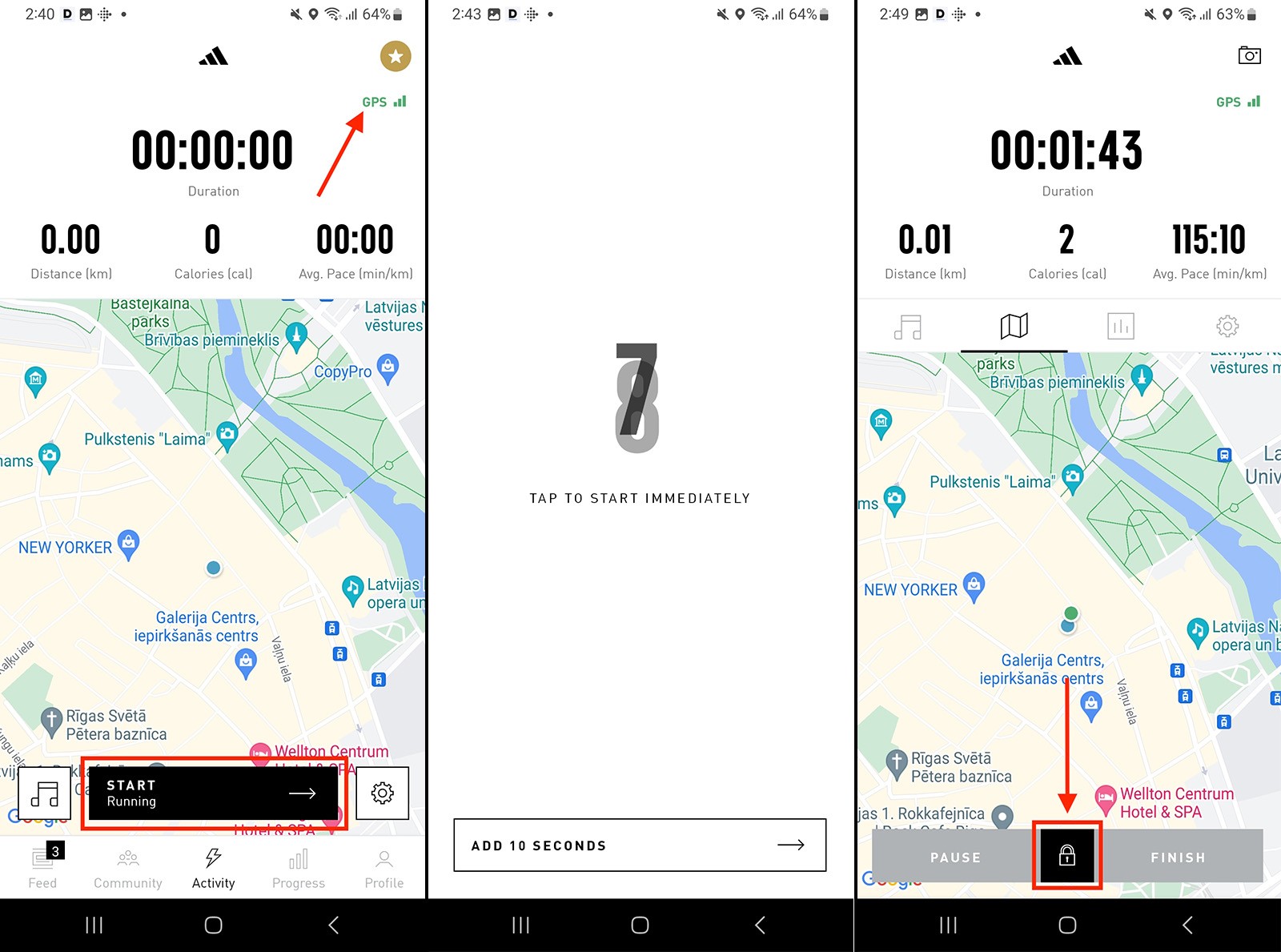
Wait for the phone to find the GPS signal to accurately track the workout.
-
Once the GPS signal is established, tap "Start" to begin recording the workout.
-
The app will give you 15 seconds to prepare for the workout.
-
Carry your phone with you throughout the workout.
-
Upon completing the workout, touch the "Lock" icon, located between the "Pause" and "Finish" buttons. This will unlock the buttons.
-
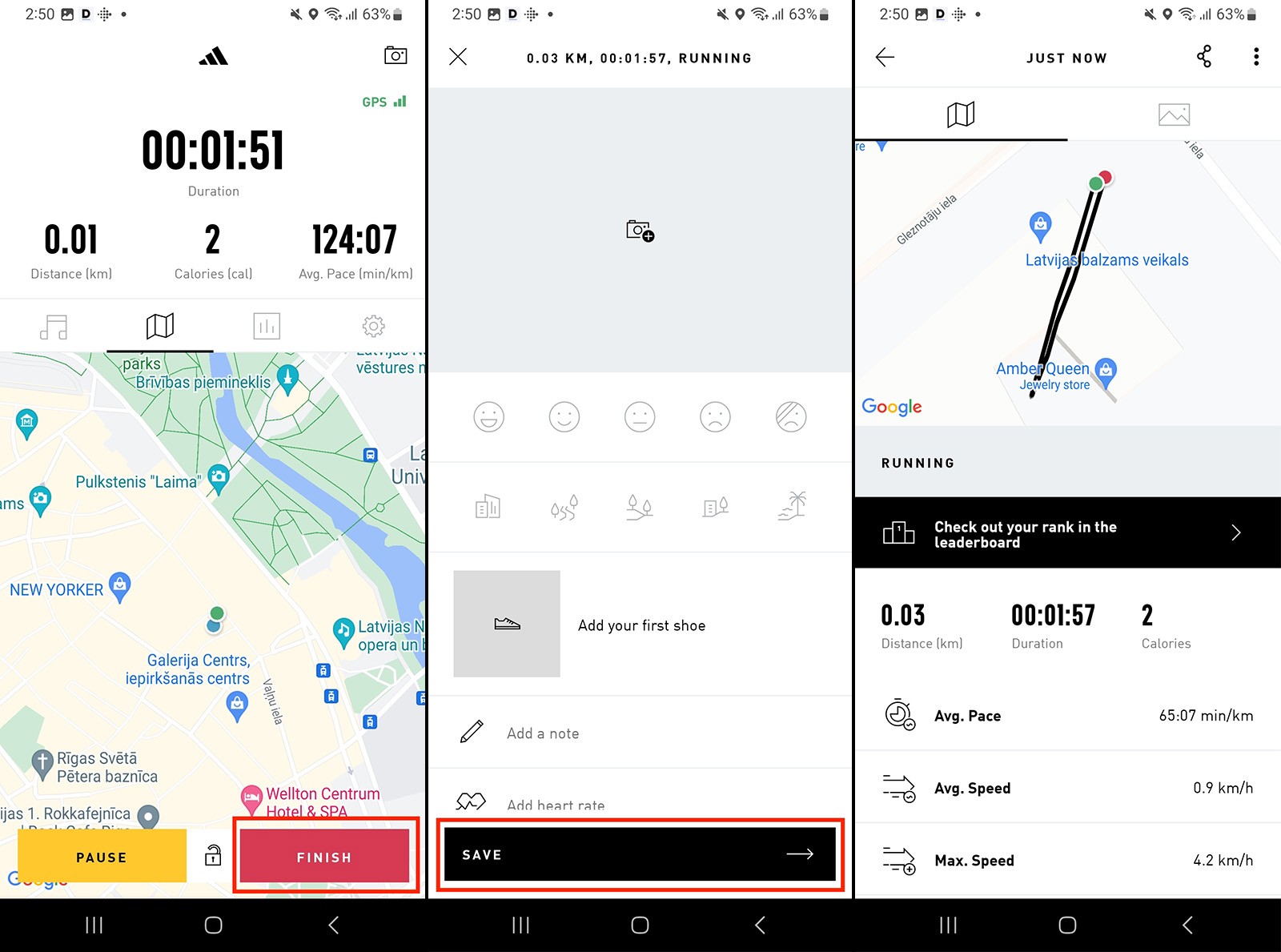
Tap "Finish."
-
On the next page, press "Save"
If your Adidas Running app account is connected to DistantRace, the recorded workout will be saved and automatically synchronized with DistantRace.