Twilio
Twilio
Connect Twilio to send SMS and WhatsApp messages to participants via the Marketing module.
Connect in DistantRace #
- Club settings → Integrations → Twilio → Connect
- Enter:
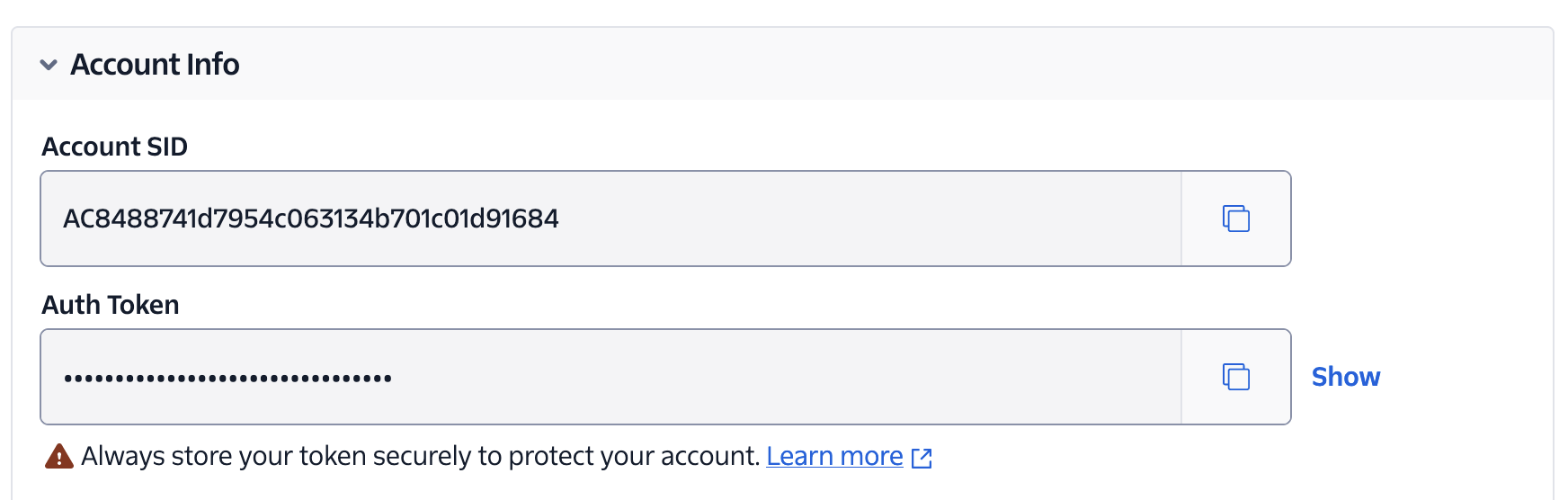
- Account SID and Auth token (from Twilio Console)
- Enable SMS and/or WhatsApp
- WhatsApp phone number — your approved WhatsApp sender
- Messaging service SID — for SMS delivery
- Save — DistantRace validates credentials against the Twilio Content API.
After connecting:
WhatsApp setup (Twilio + Meta) #
What needs to be done to set up WhatsApp:
- Create a Facebook Business account: https://business.facebook.com
- Register on twilio.com and log in to the system.
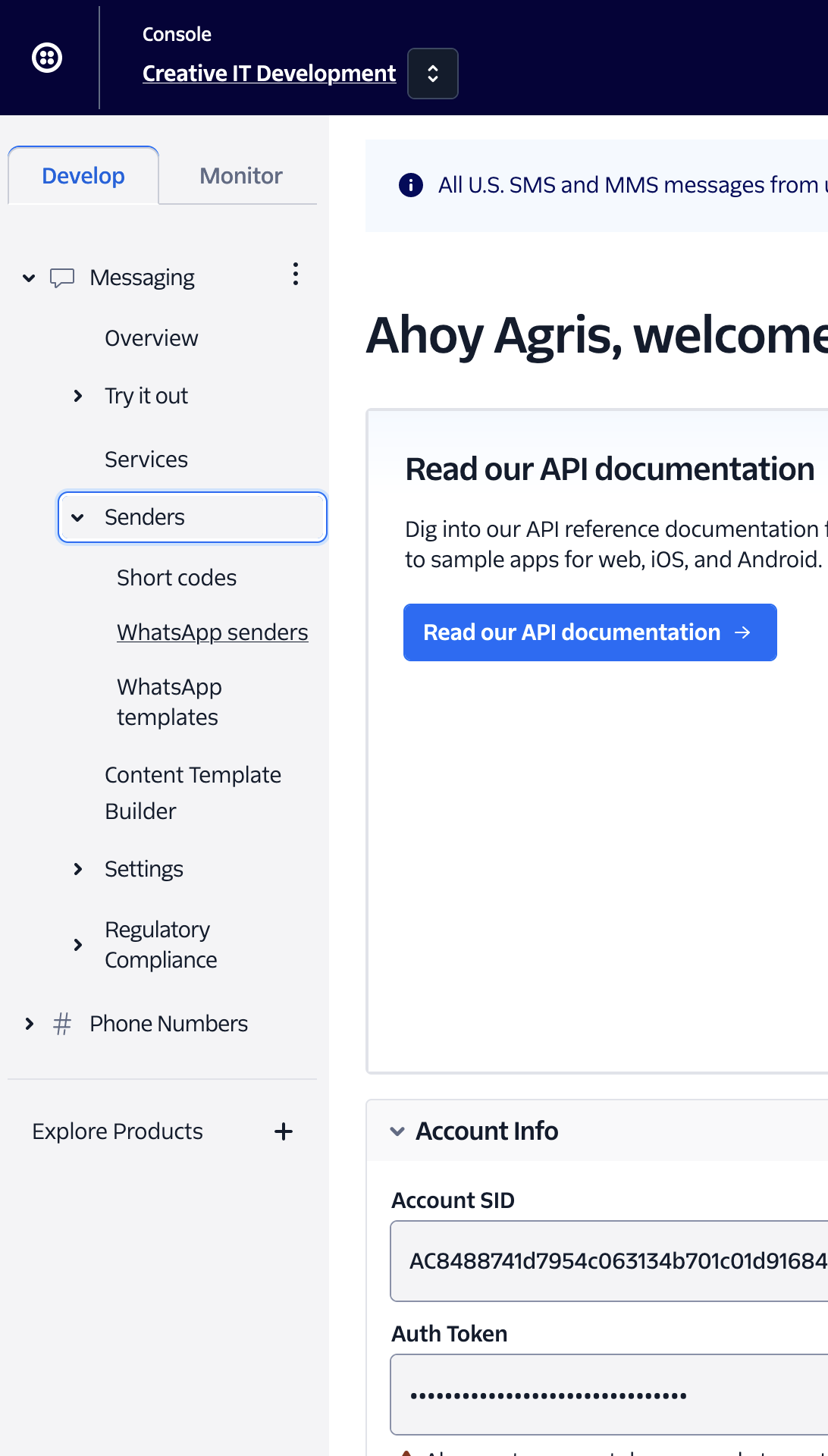
- In the menu, go to "Messaging - Senders - WhatsApp senders"
- Add a phone number or buy a number from Twilio:
To connect WhatsApp, the Twilio account must have a credit card attached and a $20 advance deposited into the account.
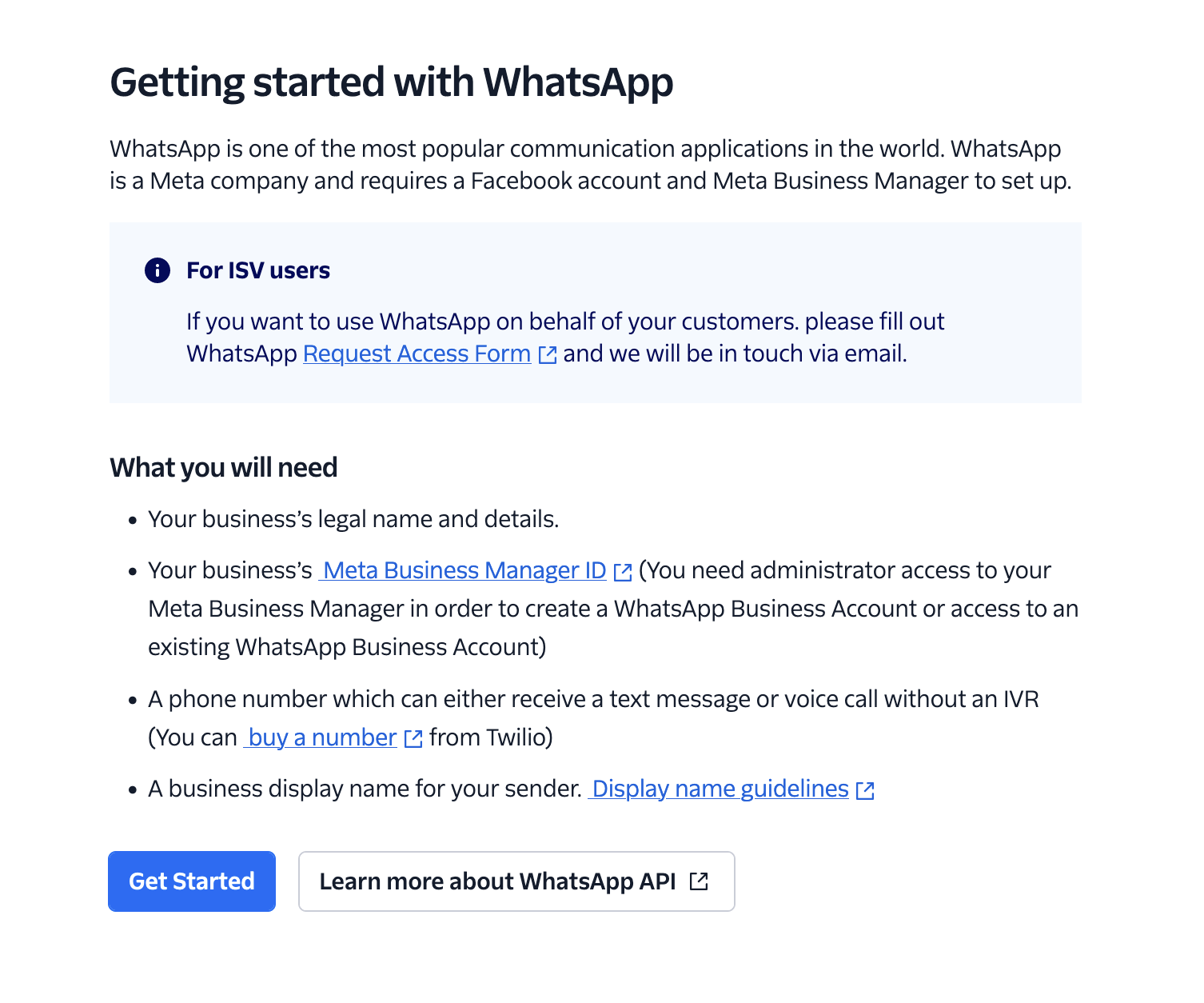
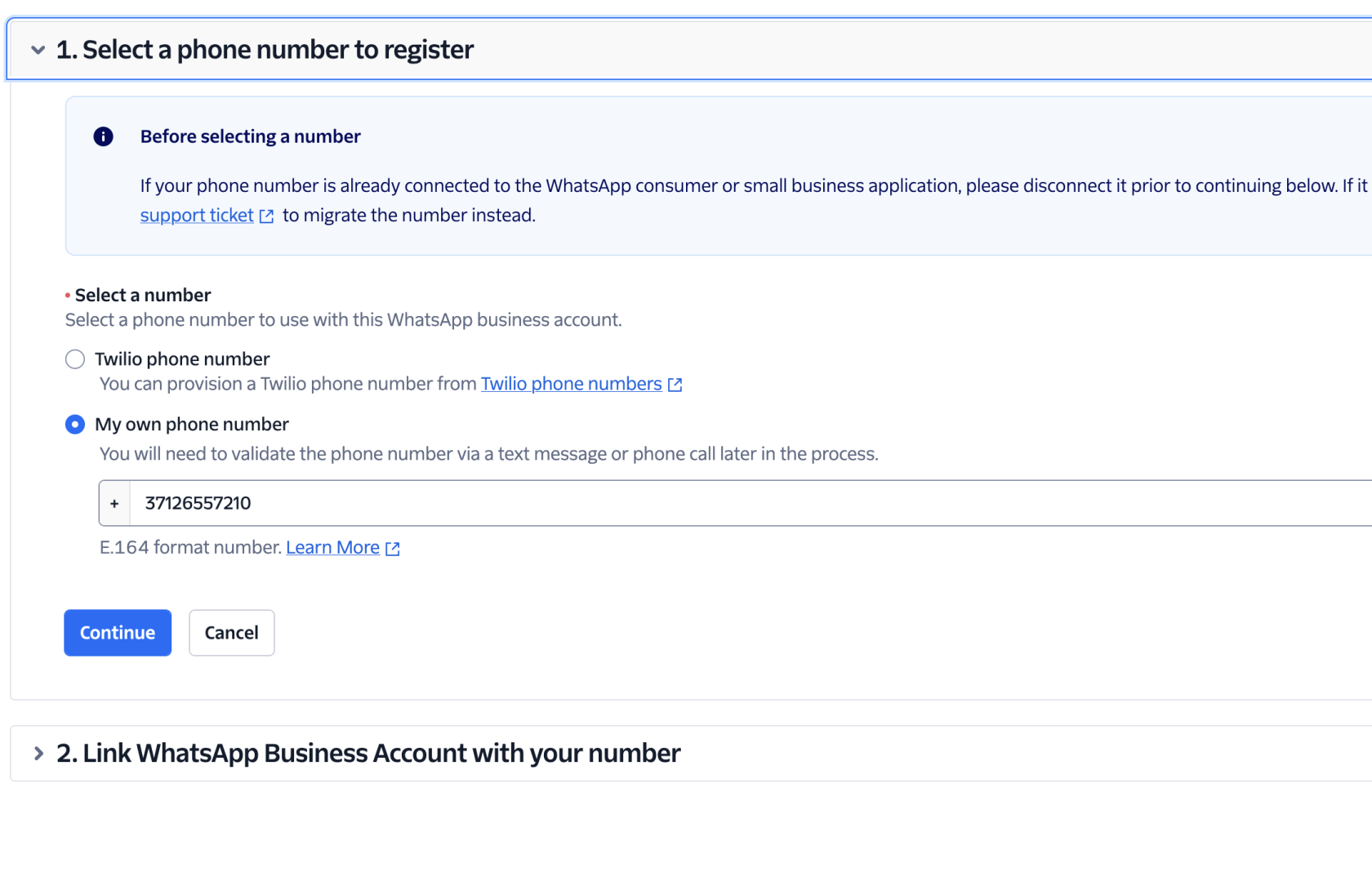
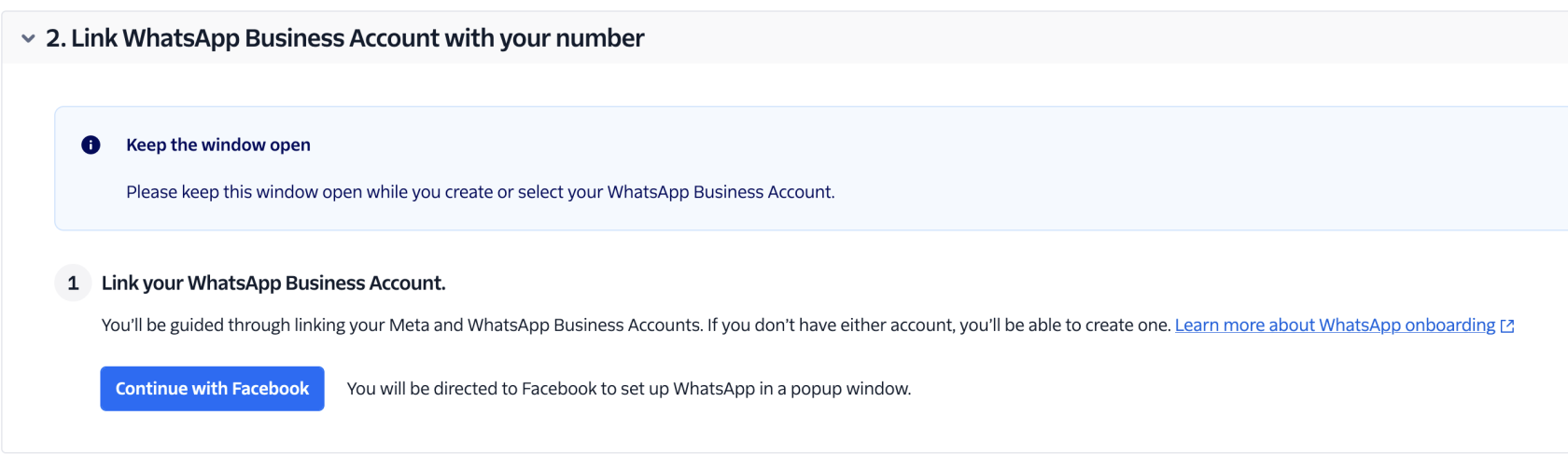
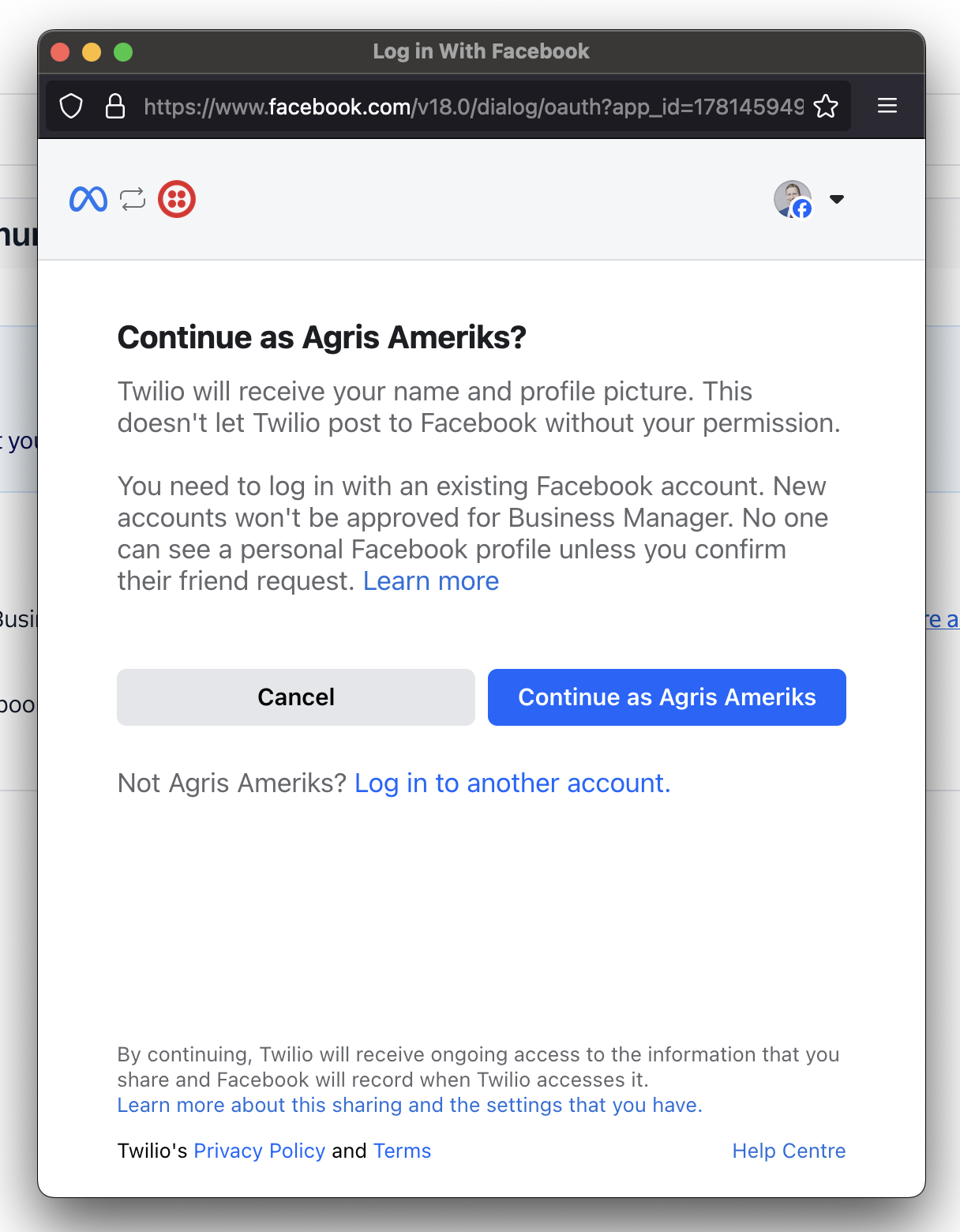
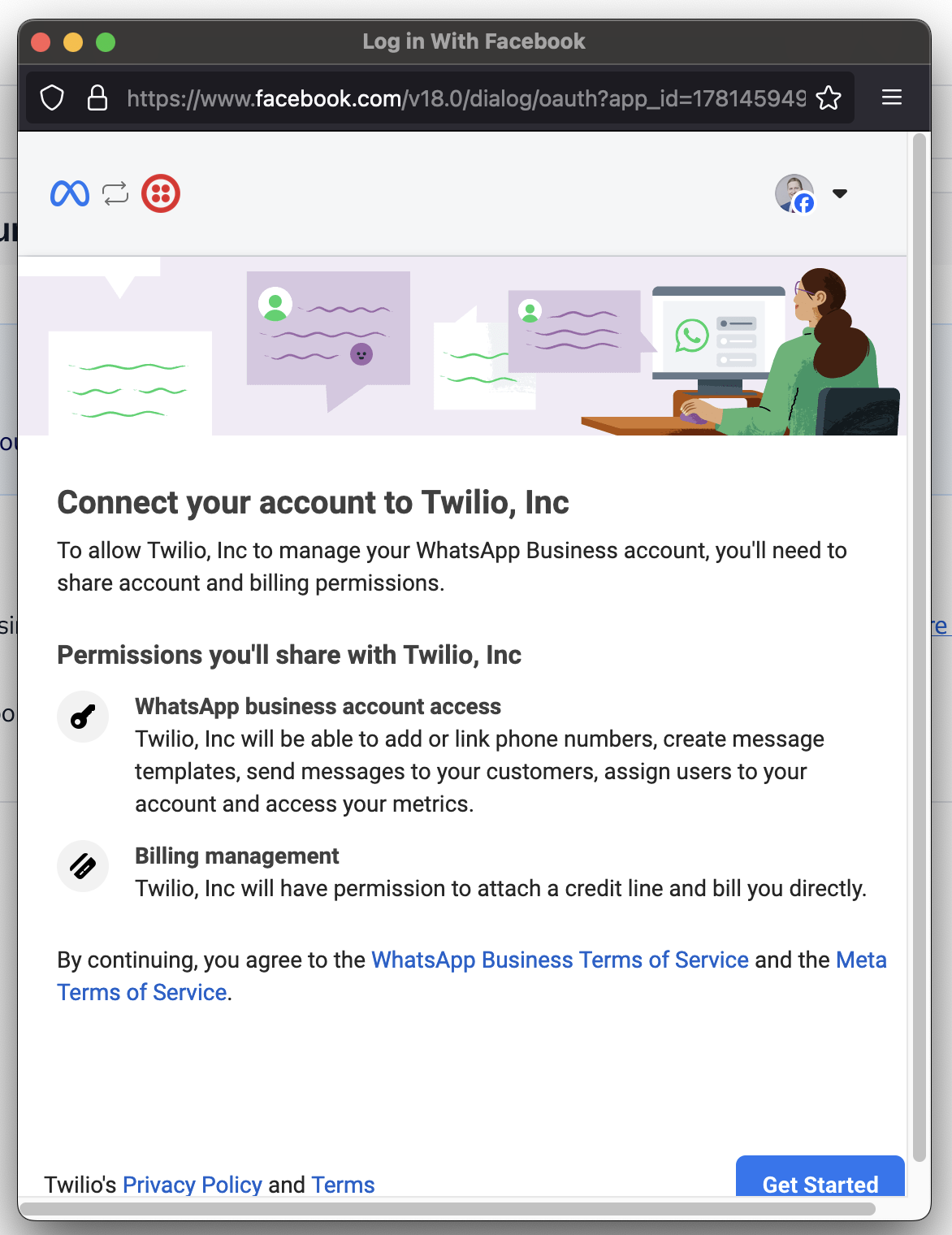
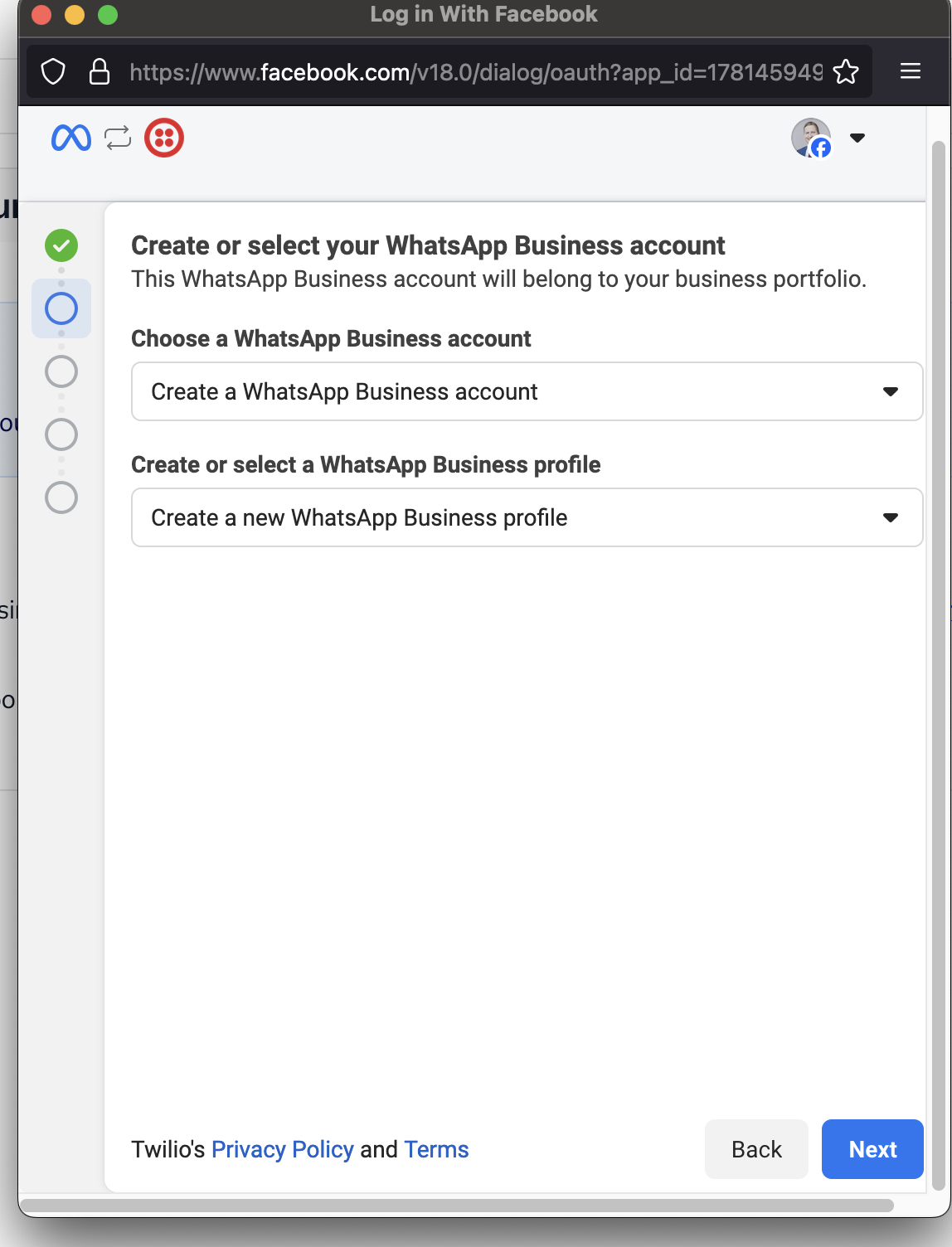
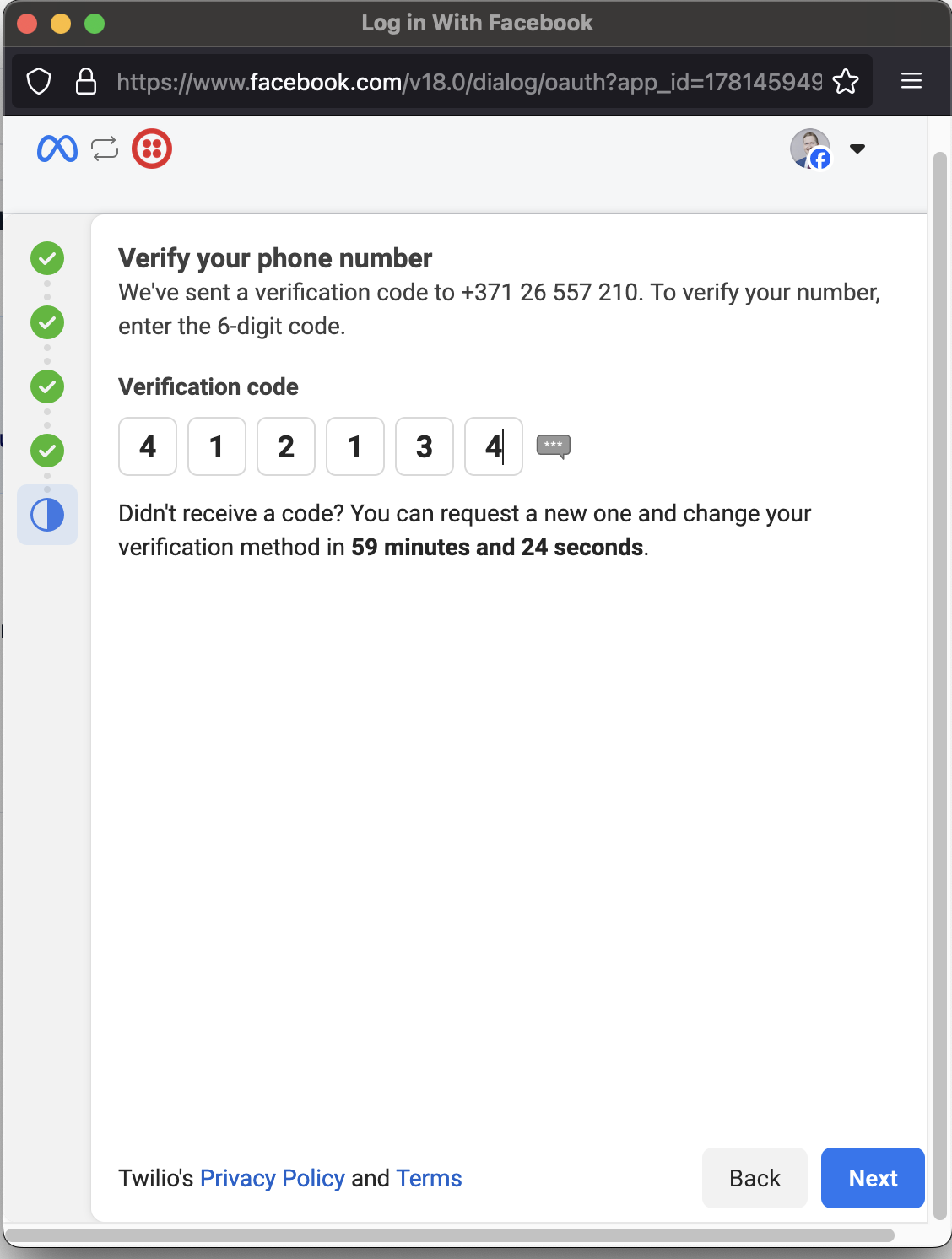
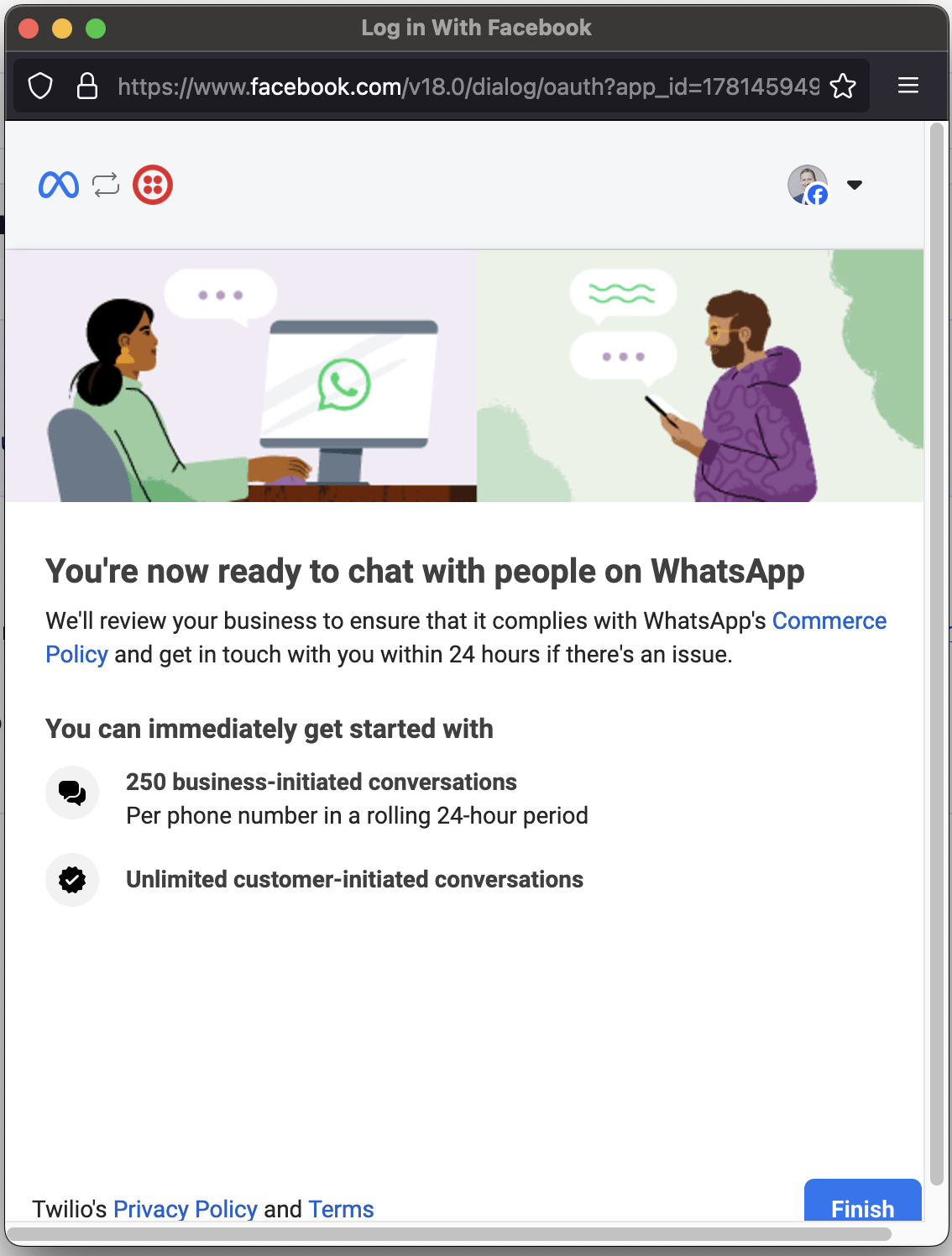
- Go to "Services" and add WhatsApp as a sending channel:
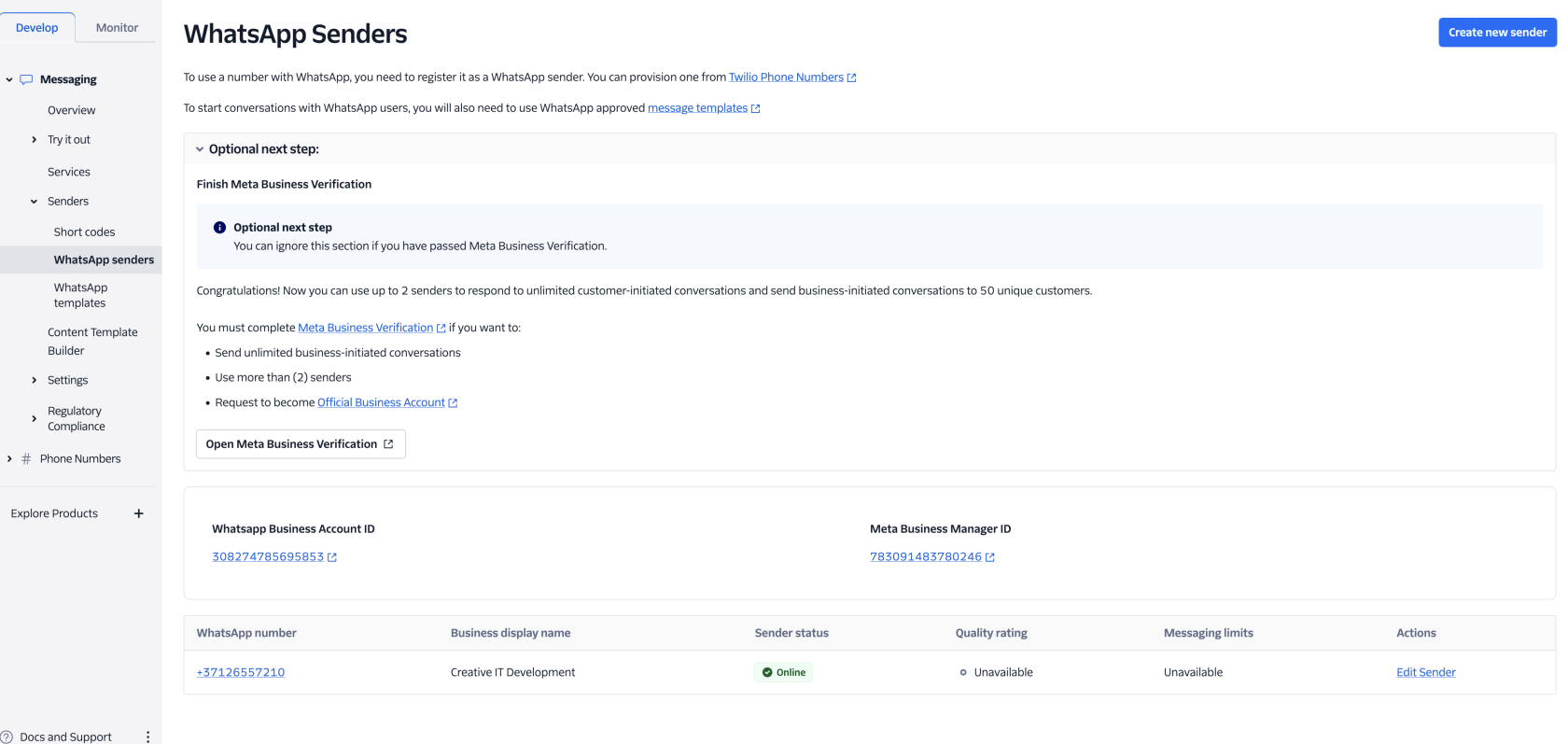
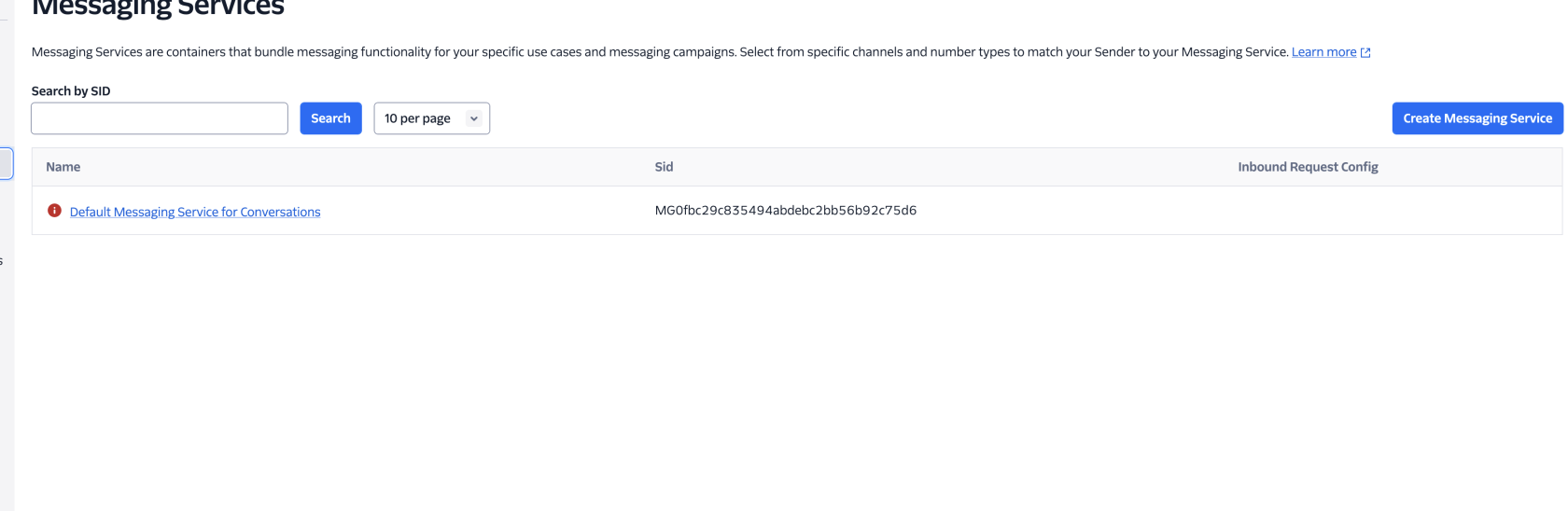

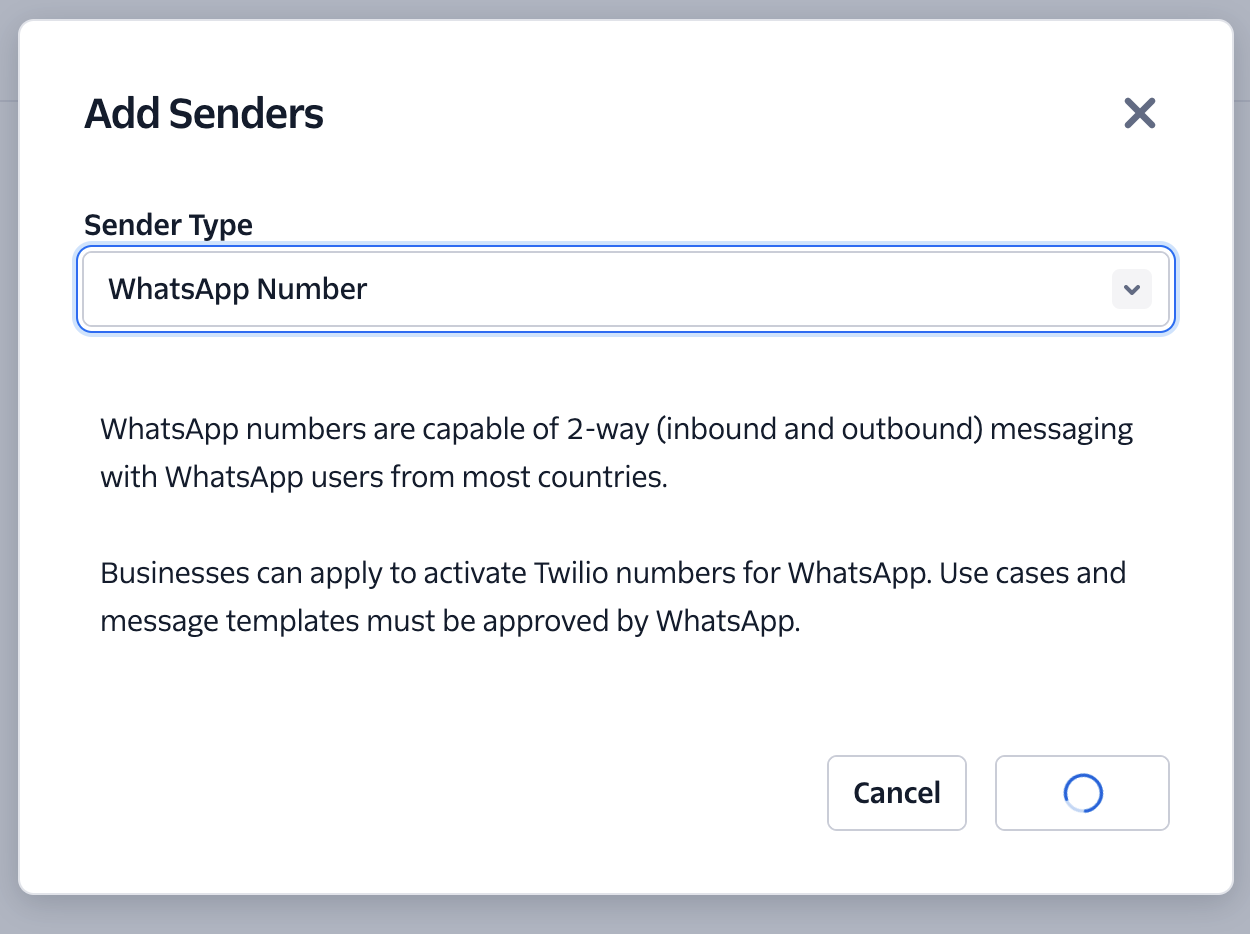
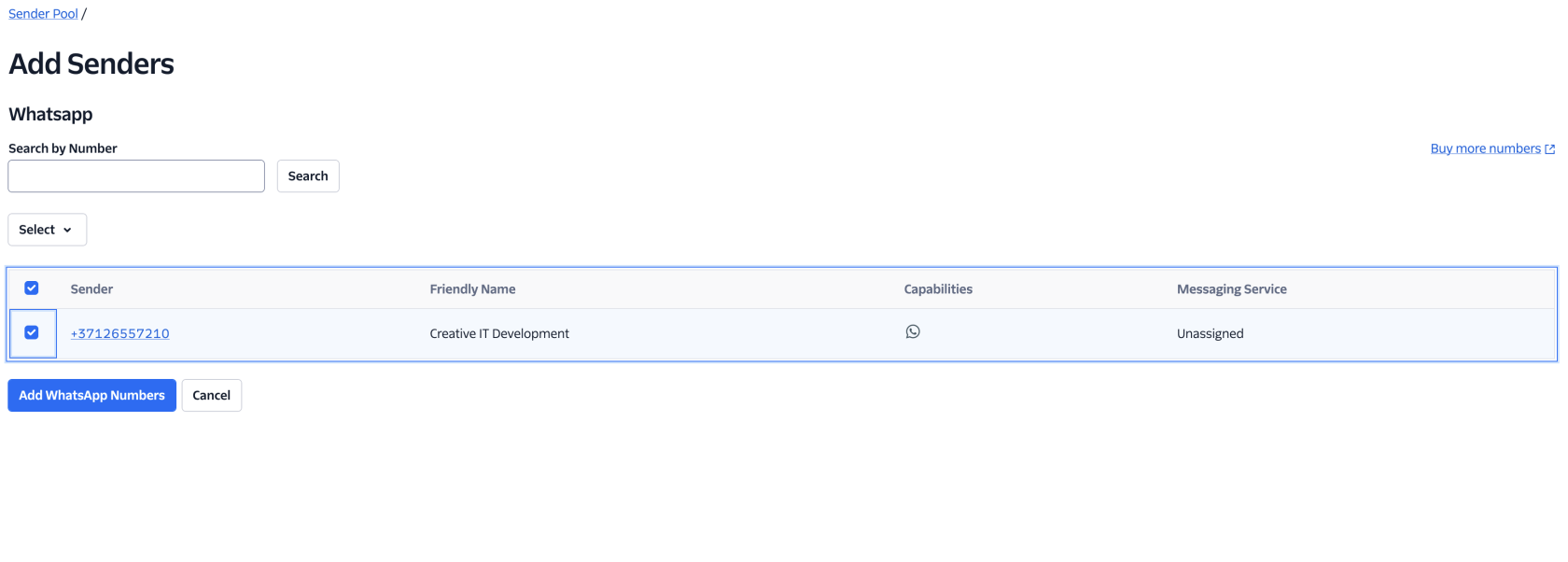
- Go to Facebook, to "WhatsApp accounts":
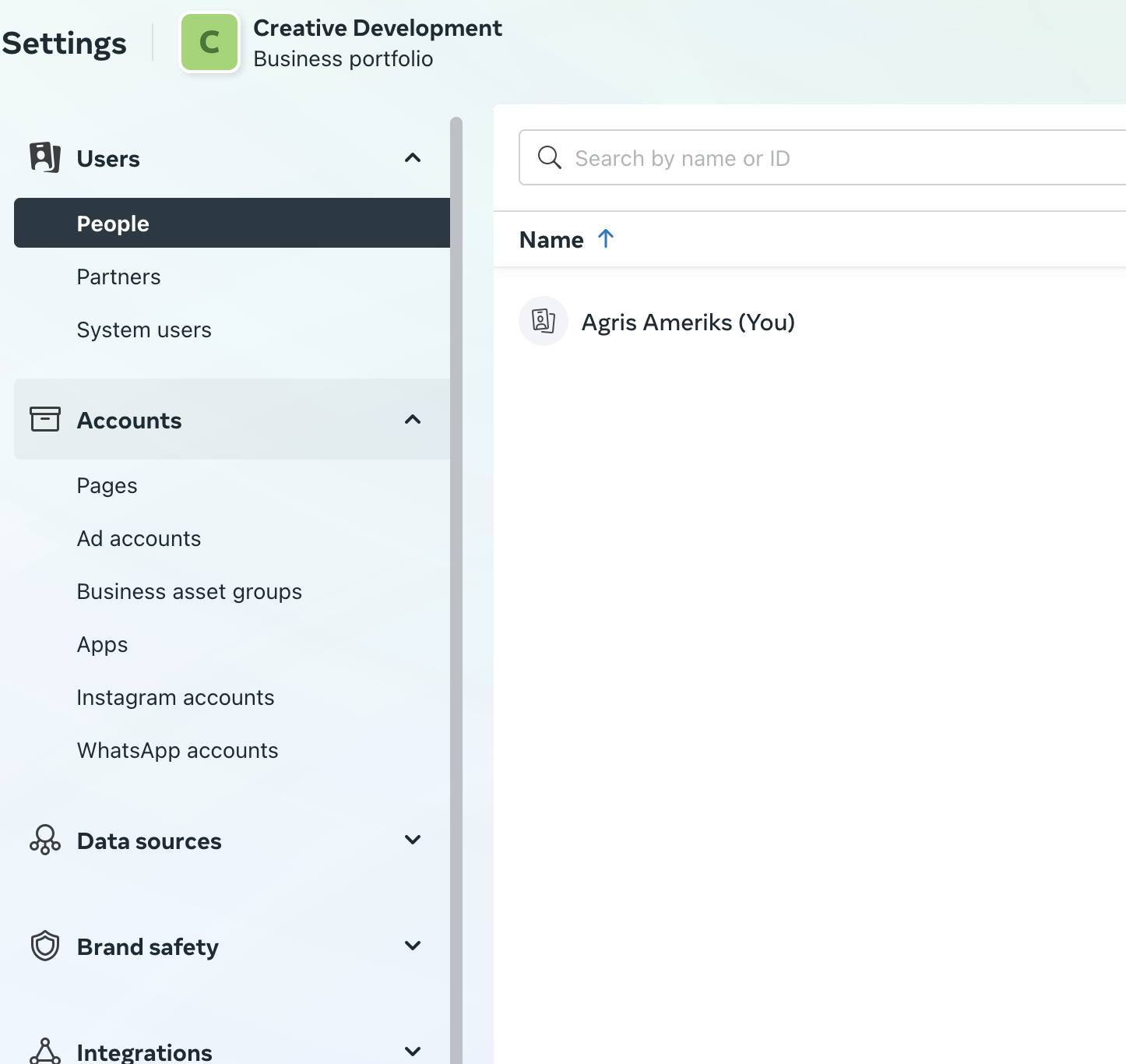
- Go to "settings" and press "Start verification".
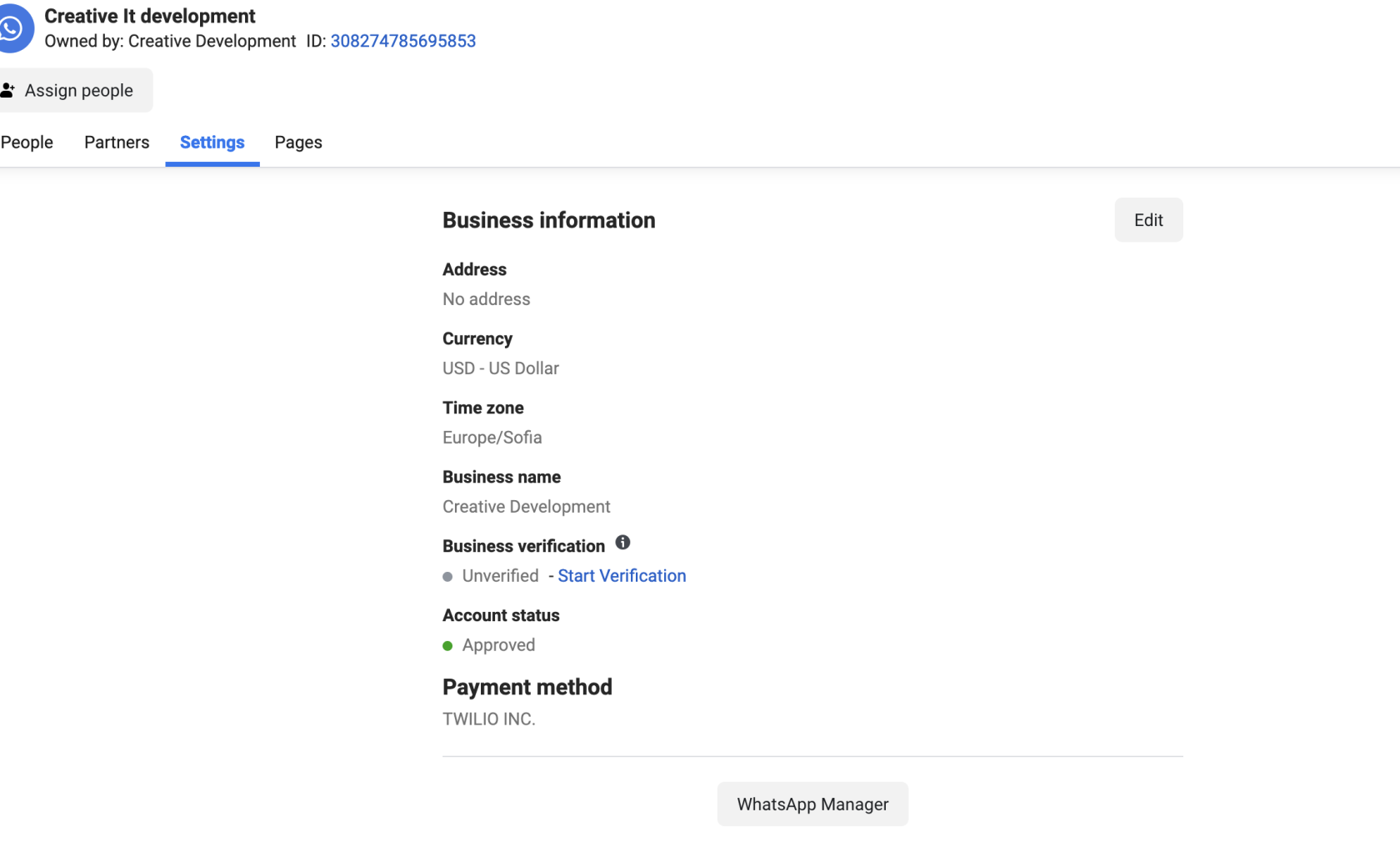
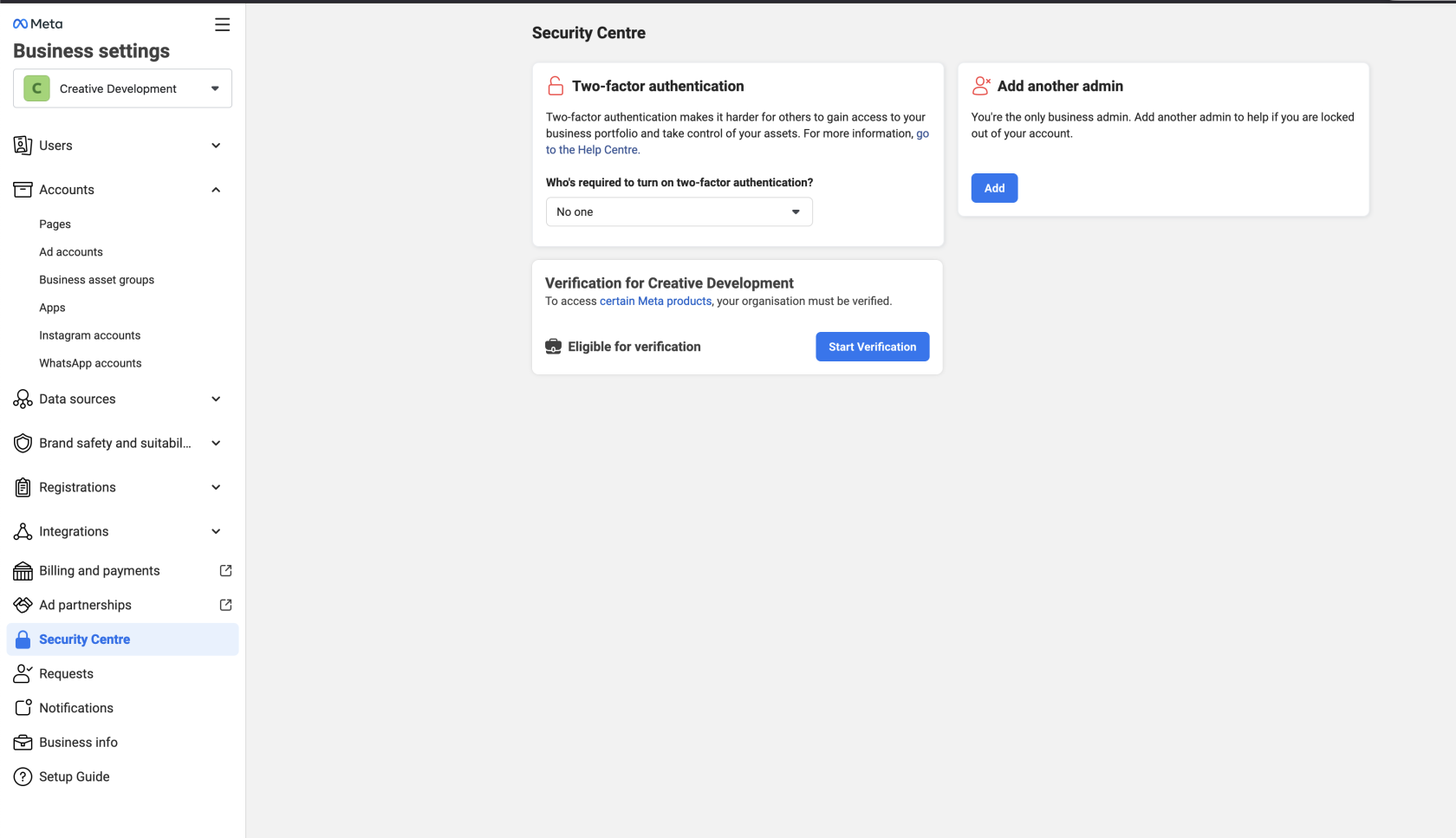
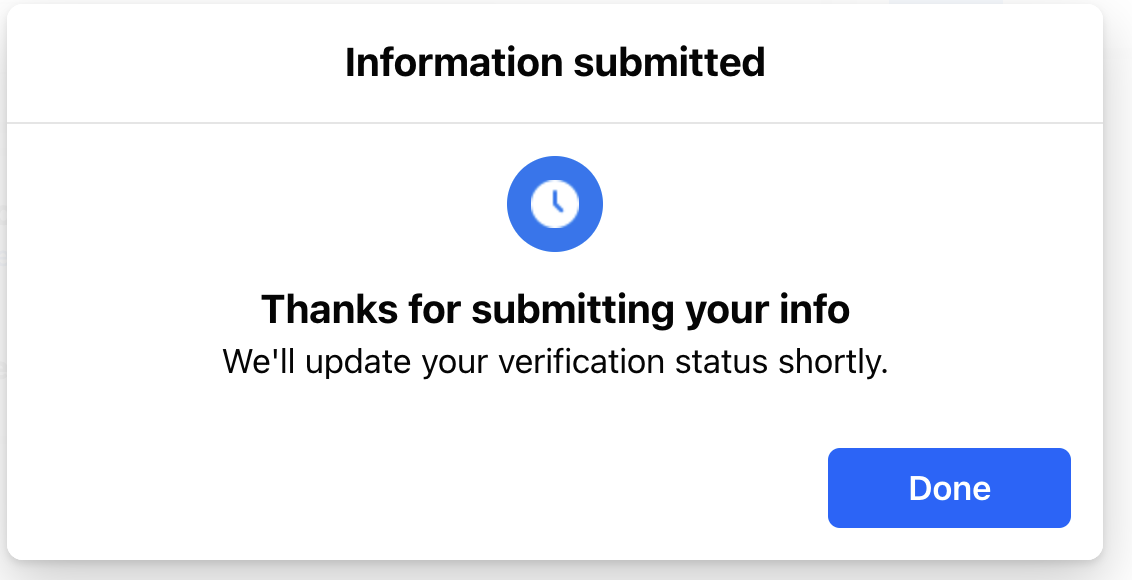
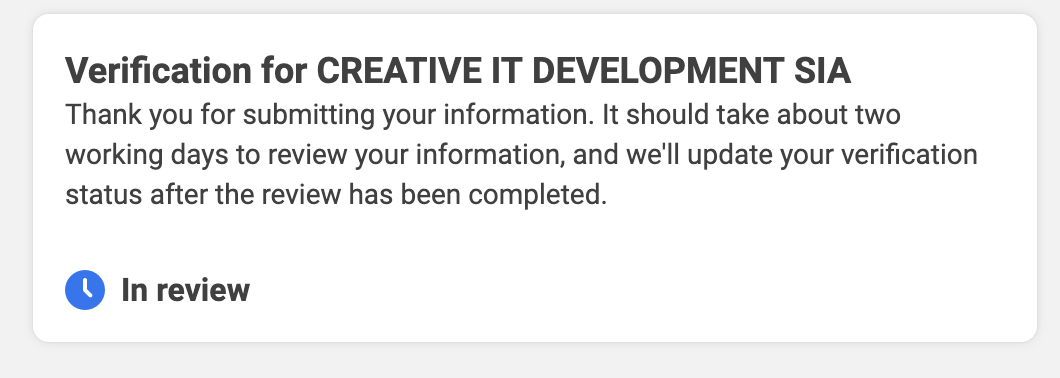
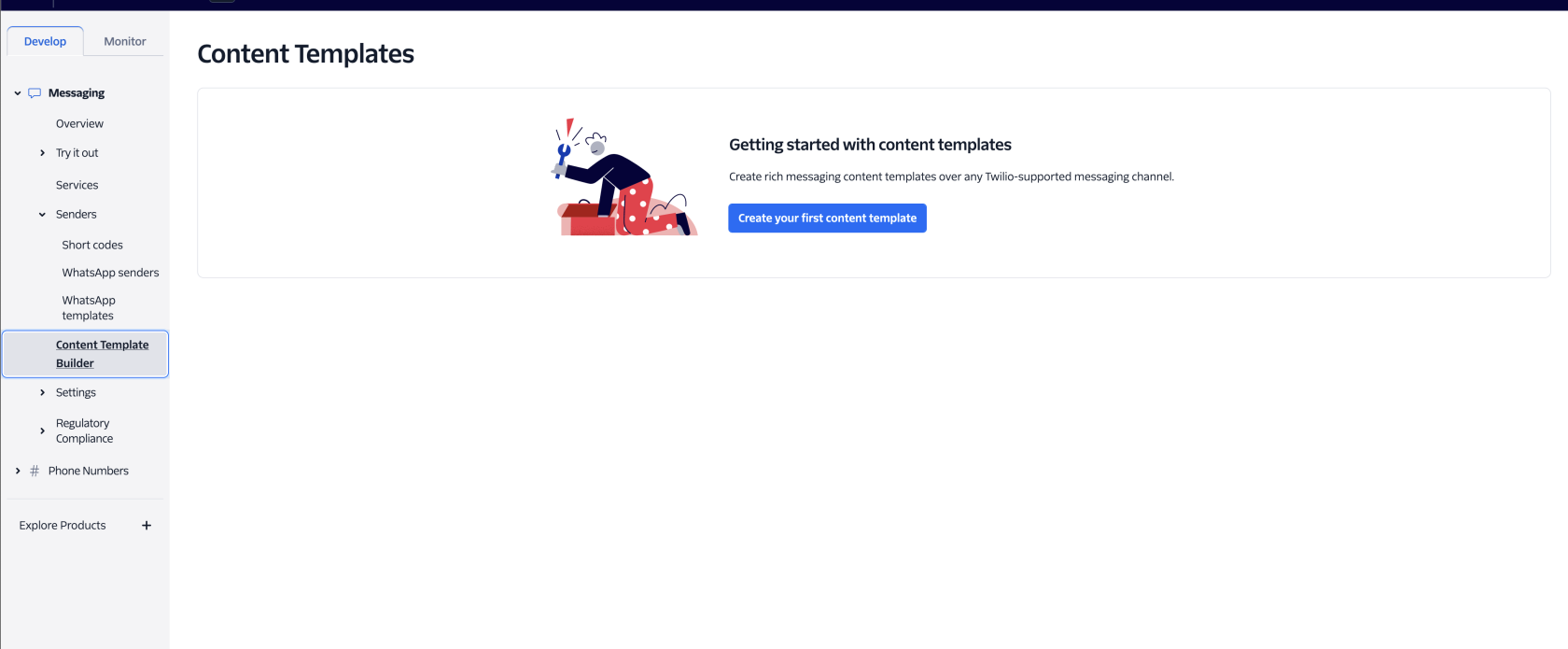
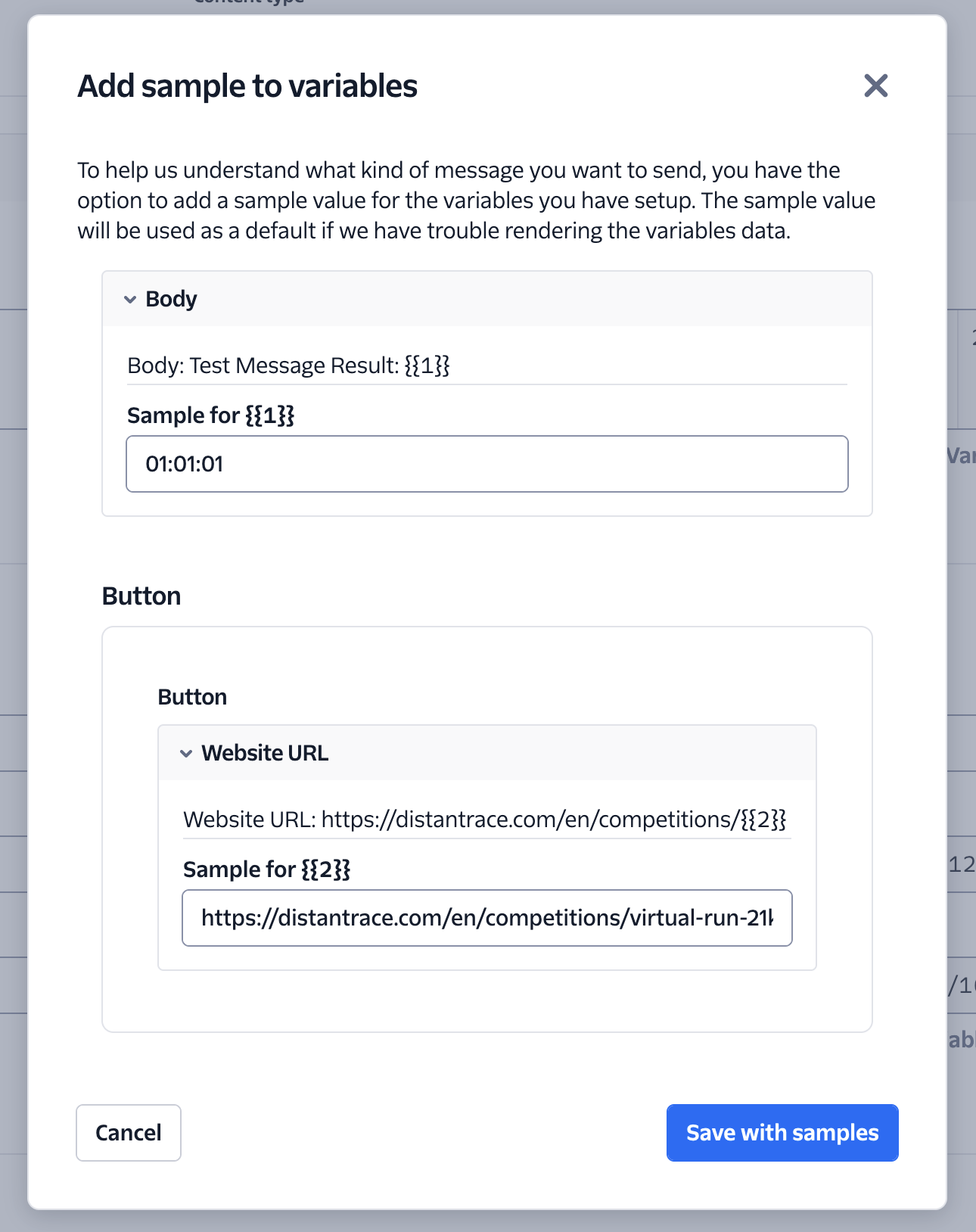
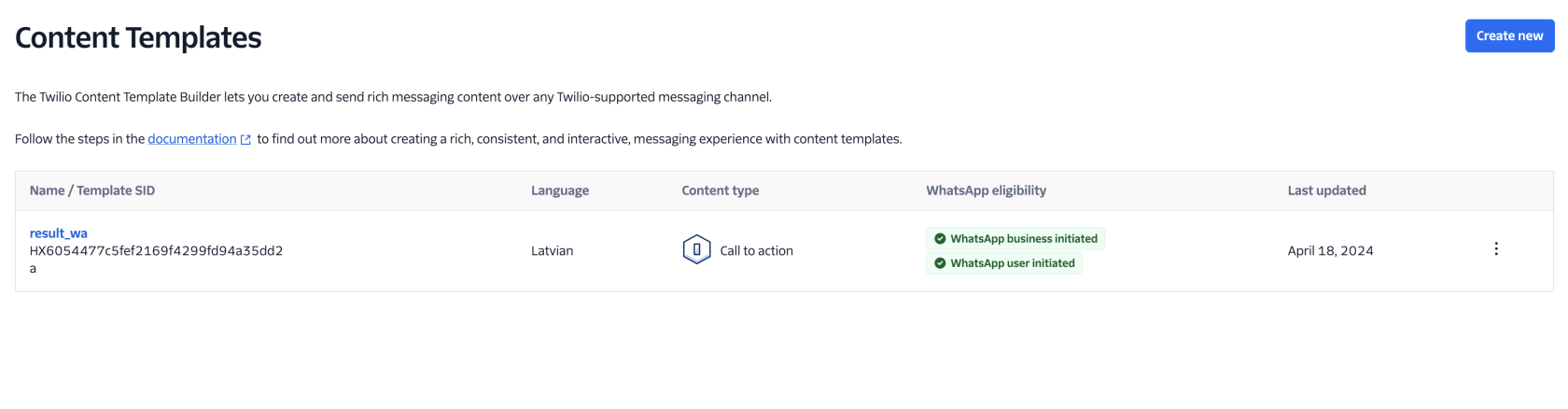
- Create the design of the outgoing WhatsApp message in Twilio: https://console.twilio.com/us1/develop/sms/content-template-builder.
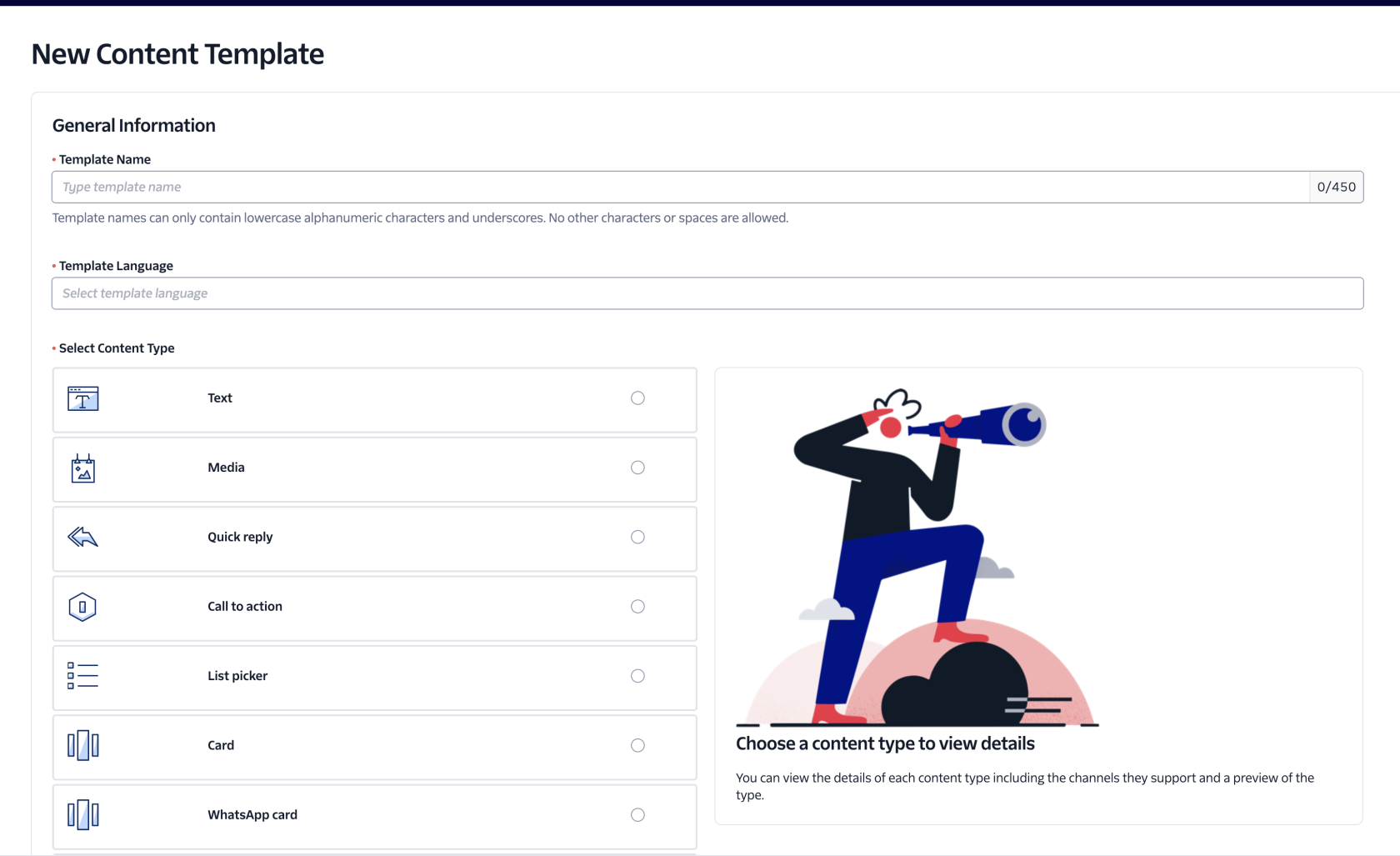
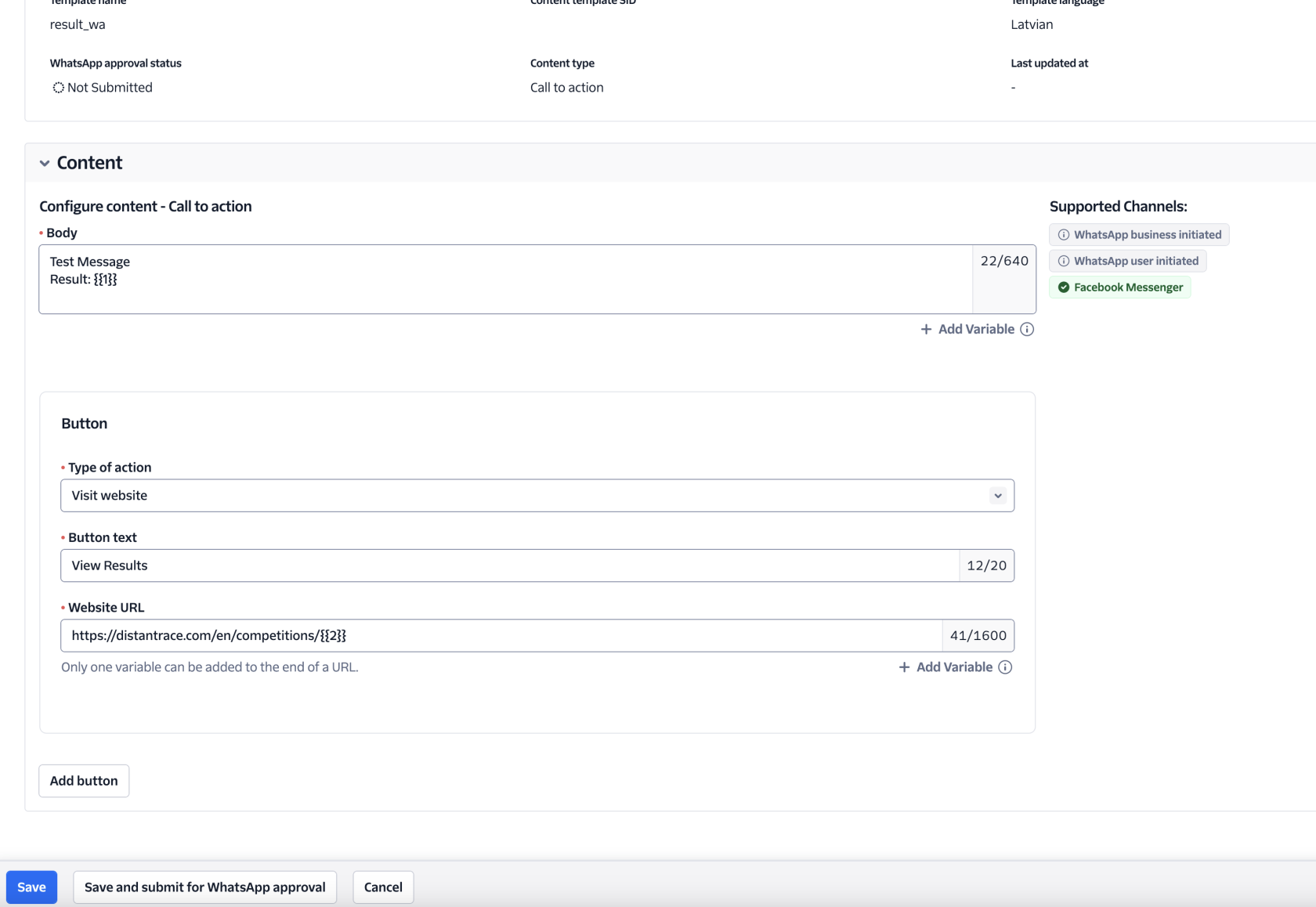
- Send the created message design to Facebook for approval. If the outgoing WhatsApp message is a results message, choose "Utility", because this type of WhatsApp message has a cheaper price. It is recommended not to allow WhatsApp to move it to another category on its own, because results WhatsApp messages are very often moved to the Marketing category, where the price of each message is much higher.
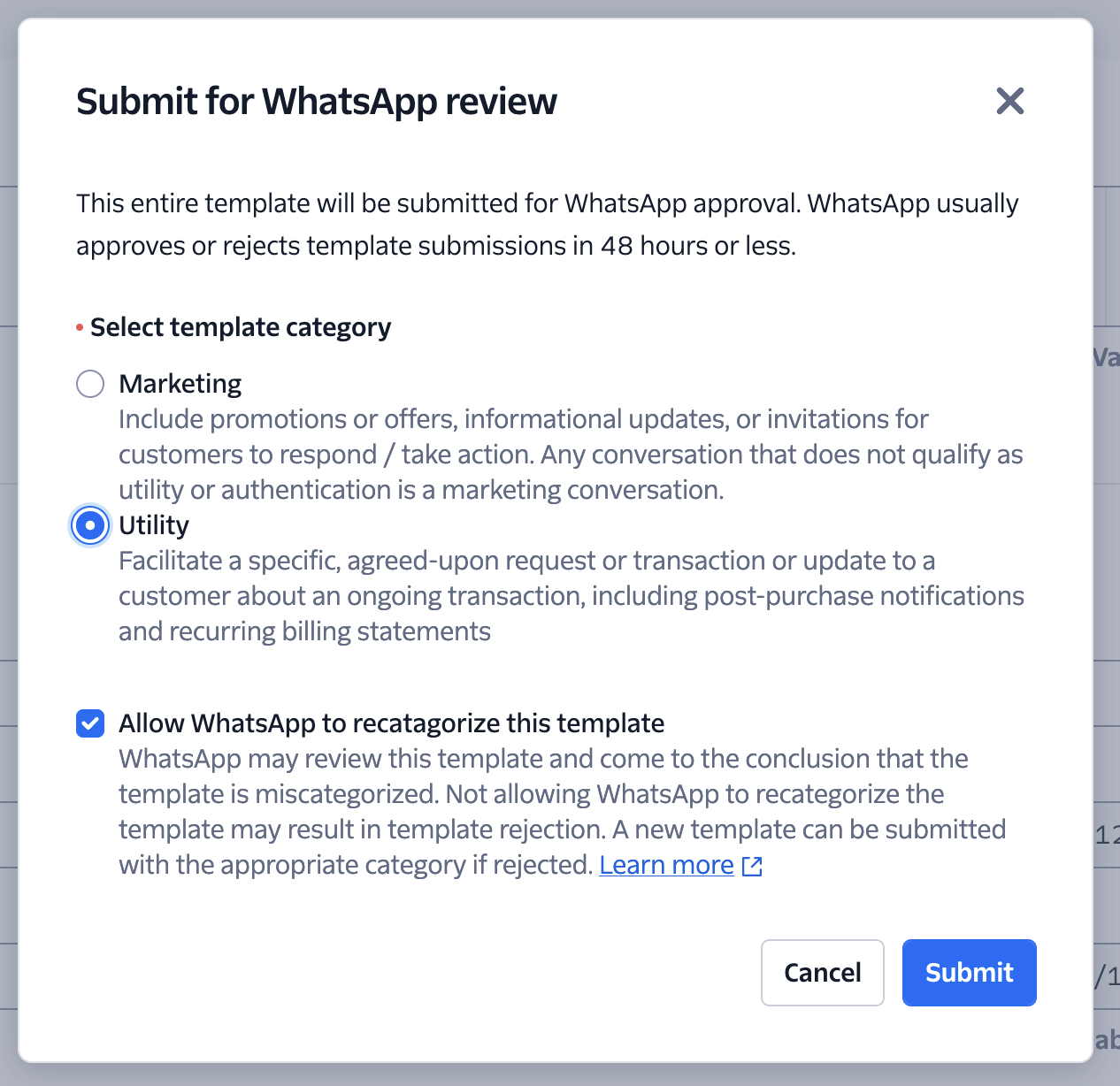
If WhatsApp rejects the WhatsApp message with a statement that it does not fit the Utility category, you need to submit an "appeal" to Facebook.
Example of an appeal comment:
This message is intended for marathon participants who cross the finish line. We categorize it as an "order update" message, since in our context, "registration for a competition" is analogous to placing an order.

Contents of the message:

1. Participant Name
2. Participant Distance (e.g., Marathon/Half-Marathon)
3. Time
4. Overall Place
5. Participant's Age Group
6. Participant's Place in Age Group
7. Standing Result
8. "Show Result" button that directs the user to his or her result certificate.

This message contains no marketing content; it merely updates the order status to "Finished Marathon" and includes the certificate in the dynamic link.
- Enter your Twilio credentials in DistantRace (Club settings → Integrations → Twilio): https://console.twilio.com/
¿Te resultó útil esta página?
Gracias — tus comentarios nos ayudan a mejorar esta documentación.