Real Race Management
- Registration for the competition on the day of the event or after online payments have been disabled.
- Upsell products in checkout
Registration for the competition on the day of the event or after online payments have been disabled.
To ease the organizers' work with last-minute participant registrations, we have developed a system allowing participants to register for the competition even after the official registration has closed and payments can no longer be made. No more paper registration forms, as participants can enter their information themselves online.
How does it work?
-
Participants continue registration
DParticipants can continue to register using the same application link (site) as before. The only exception is that the registration form can only be filled out for one person at a time.
-
Participant's QR code
After filling in the registration data, the participant is shown a QR code along with a notification that the registration data has been successfully completed. This information is also sent to the participant's specified email address.
-
Registration confirmation on race day
On the day of the competition, the participant goes to the registration tent with the QR code at the event. An organizer's representative scans the participant's code, bringing up all the participant's information. From this same view, the participant can be assigned a number and registered for the race, provided they have made the payment beforehand.
-
Access to the participant's QR code
To enable registration form filling after online payments have ended and to send QR codes to participants, specific configurations must be made in the administrator's panel for the particular competition.
How to enable the registration form filling?
Lai pieslēgtu reģistrācijas anketu aizpildīšanu pēc tiešsaites maksājumu beigām un QR kodu izsūtīšanu dalībniekiem, ir jāveic zināma konfigurācija administratora panēli konkrētajām sacensībām.
- Registration configuration
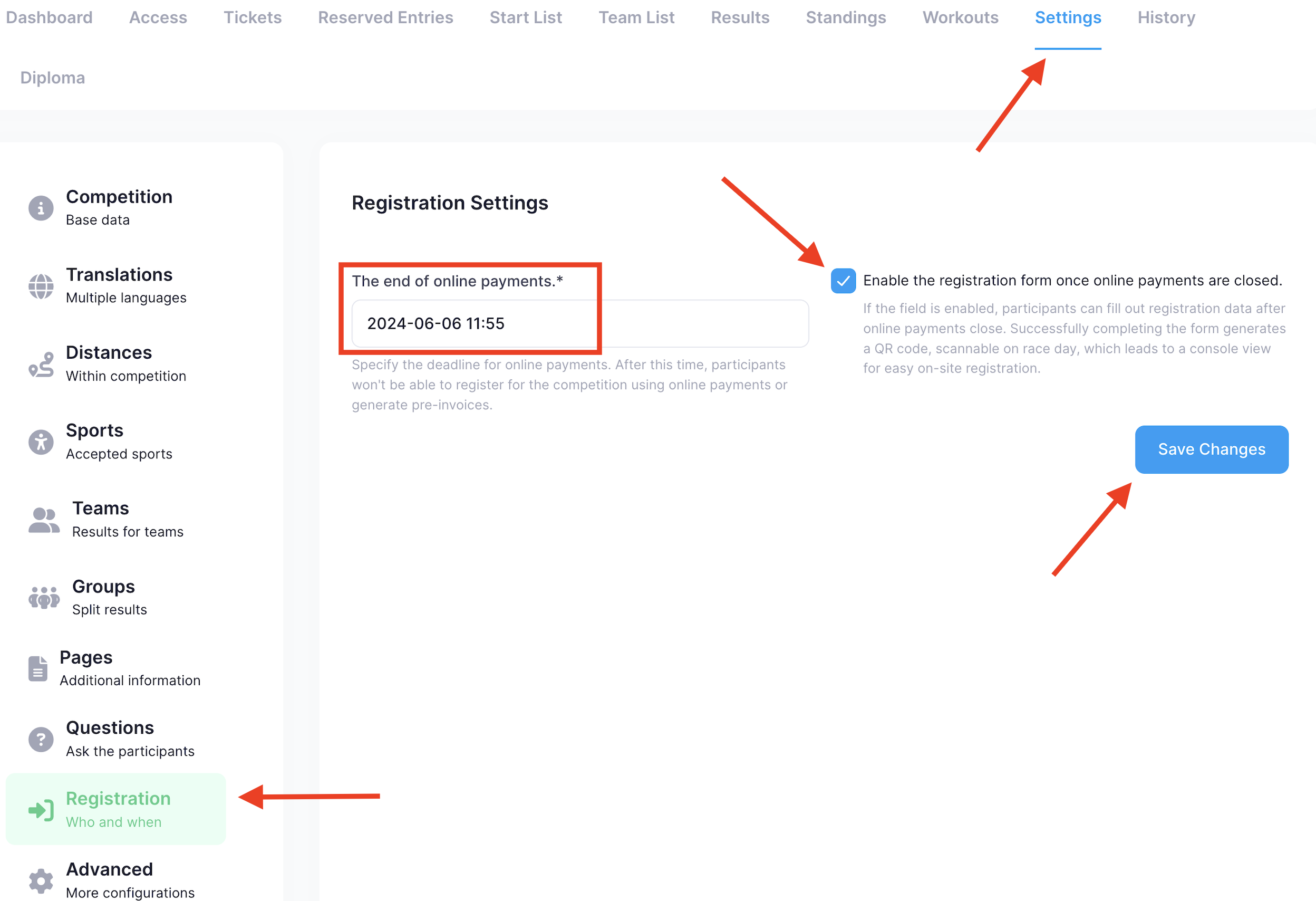
- Go to the competition section "Settings" --> "Registration".
- In the field "The end of online payments," specify the time when the option to register using online payments will be disabled.
- Check the box next to the field to allow participants to continue filling in the registration data and receive QR codes (field "Enable the registration form once online payments are closed").
- Click "Save Changes" to confirm the changes.
- Possible application configuration
It is necessary to configure which distances participants can register for and what the participation fee will be when registering on the competition day.
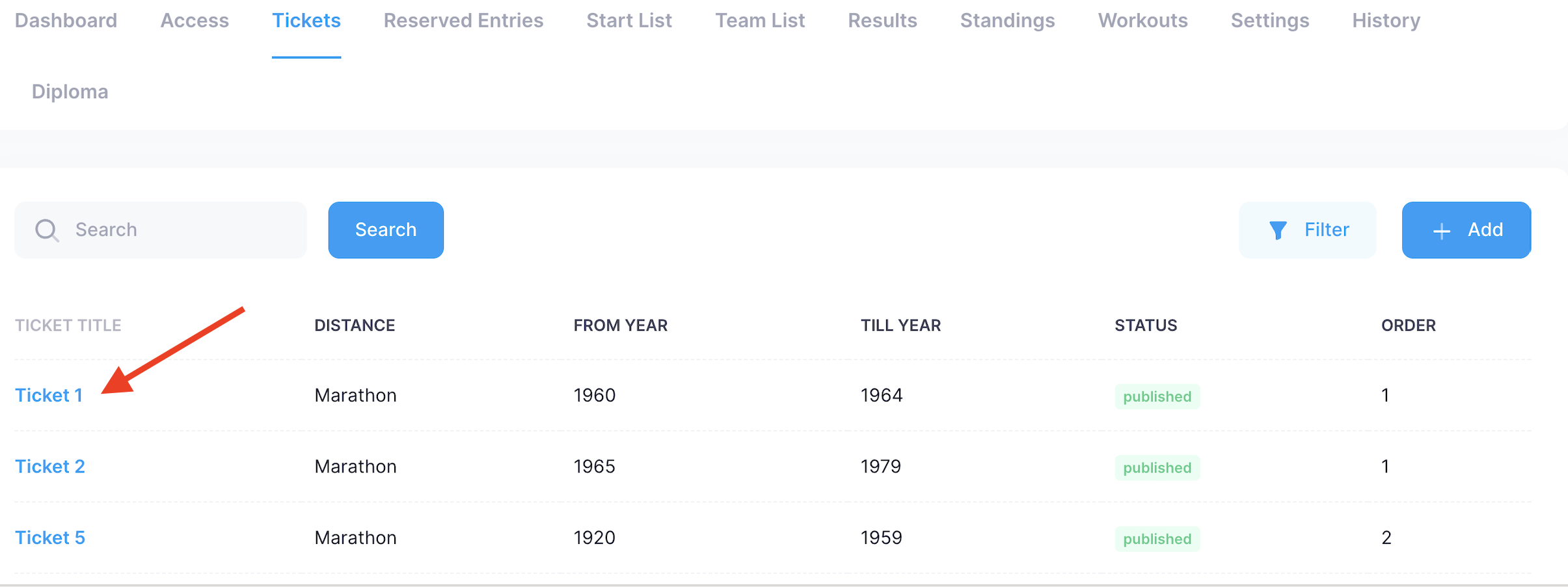
- Go to the competition section "Tickets" and select the ticket you want to activate (or create a new ticket).
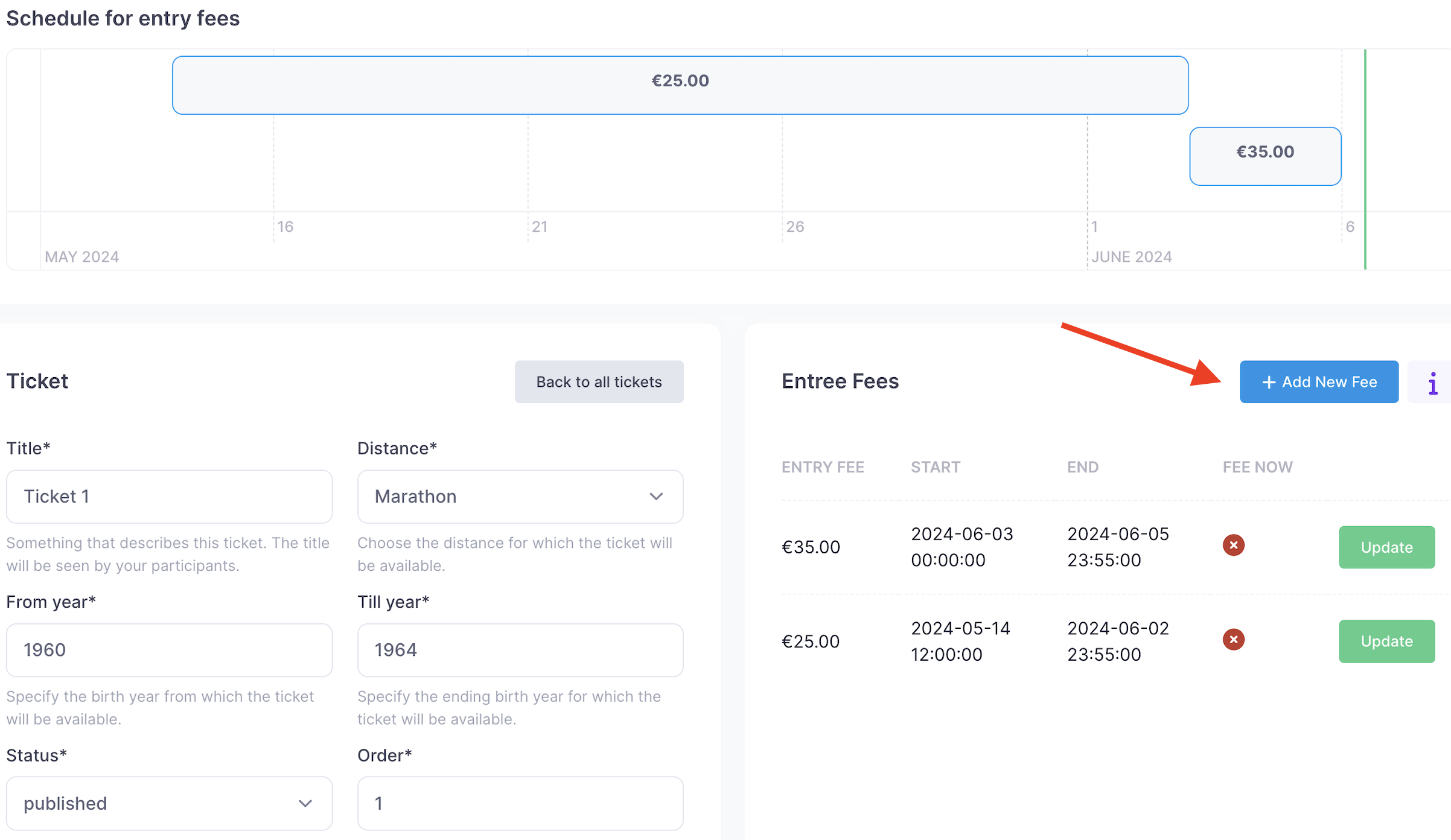
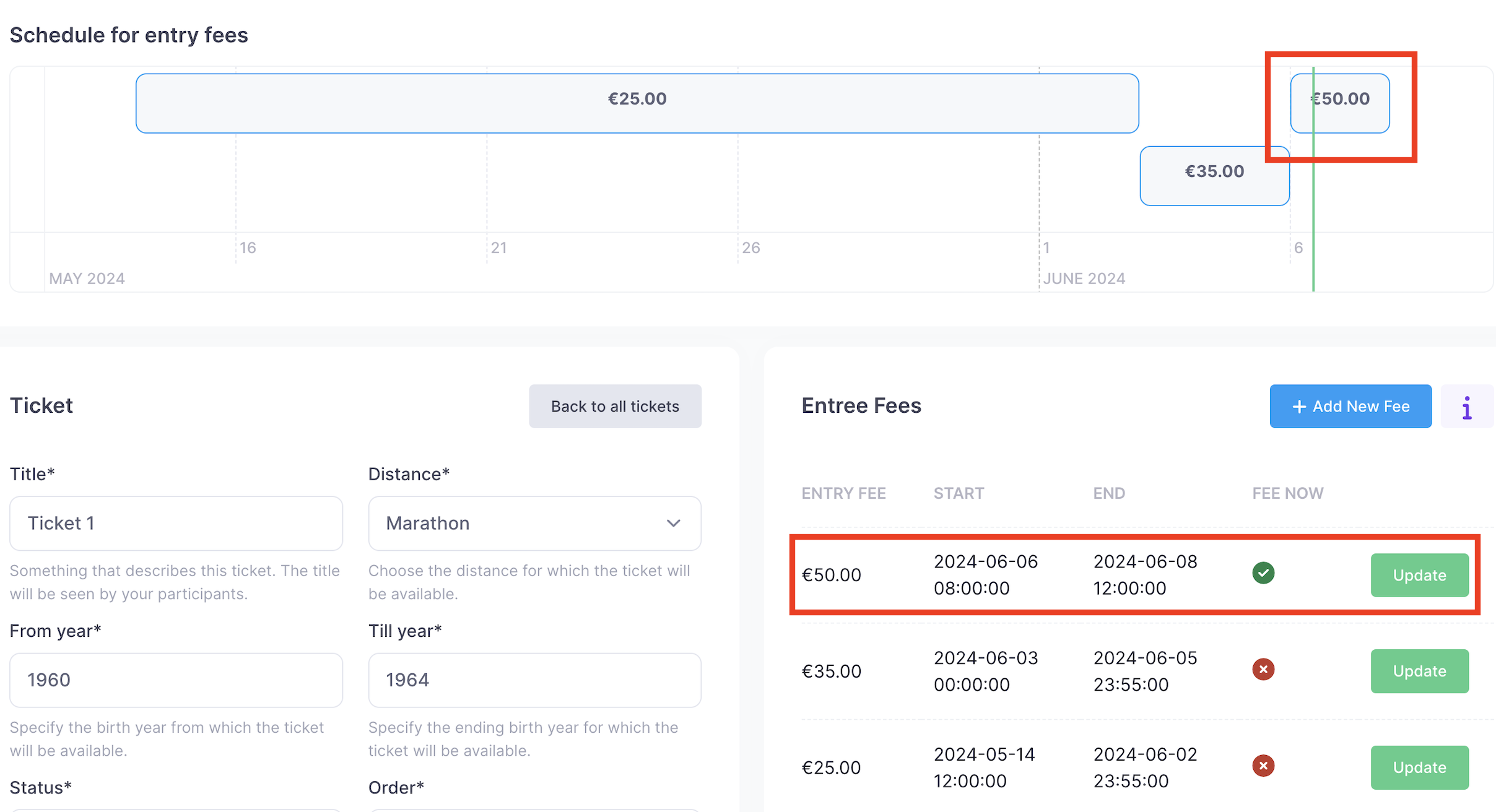
- Click "Add New Fee" to add the participation fee that will be in effect on the day of the competition.
- Once the participation fee is added, participants will be able to select this "ticket" and fill out the registration form.
- Remember, the amount of the participation fee will only be informative in this case, and no payments can be made.
Upsell products in checkout
Organizers can manage upsell products that participants see during registration or checkout (e.g. event t‑shirts, insurance, extra services). This is done in the organizer console under Shop → Products.
URL (example):
https://distantrace.com/en/console/{org_code}/shop/products/
1. Products list (Upsell products)
The main view lists all products for your organization.
Columns
| Column | Description |
|---|---|
| Title | Product name (click to edit). |
| Event | Event the product is linked to. |
| Kind | e.g. Apply form product, Add-on product, Participant/Distance replacement. |
| Price | Single price, or “min – max” with currency when the product has variations (e.g. Early bird / Standard). |
| Available from / till | Date range when the product is available. |
| Is published? | Whether the product is visible to participants. |
Filters
- Search – By product title, short name, or description.
- Event – Limit to one event or “All events”.
- Availability – Active (available till ≥ today or no end date) or Expired (available till < today).
- Is published? – Yes / No.
Actions
- Create product – Opens the new product form.
- Export XLSX – Exports the product list. The file is generated in the background and can be downloaded from Documents.
2. Create / Edit product
Create a new product or open an existing one from the list to edit.
Basic fields
- Event – Event this product belongs to (required). Only future events shown for new products.
- Distance – Optional; tie the product to a specific distance.
- Title – Display name.
- Help text – Shown next to the product in the flow.
- Short name – Internal or short label.
- Price – Amount and currency (single price when you are not using variations).
- Available from / Available till – When the product can be purchased.
- Is published? – If unchecked, the product is hidden from participants.
- Is required? – Whether the participant must choose something (e.g. accept or pick an option).
-
Default value – Pre-selected value:
true, a choice key from Product choices, or a product variation code. - Description – Rich text (WYSIWYG) for product details.
- Image background color – Background colour behind the product image (optional).
Product type (Kind)
You can choose one of:
- Apply form product – Shown in the apply/registration form. Can use either Product variations or Product choices/stock (not both).
- Add-on product participant – Add-on that is assigned per participant.
- Add on product – Add-on with a Product class (e.g. Single-choice product, Insurance, Omniva).
- Participant Replacement – For changing participants in the start list.
- Distance Replacement – For changing a participant’s distance.
If you choose Add on product, the Product class field is shown and is required (e.g. Single-choice product, Insurance, Omniva).
Product variations (Apply form product only)
For Apply form product you can define variations (e.g. “Early bird”, “Standard”) instead of using choices/stock.
- Title – Variation name (e.g. “Early bird”).
- Price – Price for this variation (amount and currency on one line).
- Group name – Groups variations together in the UI.
- Published – Whether this variation is available.
Use Add variation to add more rows.
You cannot use both Product variations and Product choices / stock for the same product; the form will hide one section once you start using the other, and the server will show an error if both are filled.
Product choices / stock (Apply form product only)
For Apply form product you can define choices (e.g. sizes, options) and optional stock instead of using variations.
- Manage stock – Switch to show/hide Initial stock and Stock left columns.
- Table columns:
-
Choice key – Internal key (e.g.
S,M,L). - Choice name – Label shown to participants.
- Initial stock / Stock left – Shown only when “Manage stock” is on.
- Disabled – Hides that option from selection.
-
Choice key – Internal key (e.g.
Use Add choice to add rows.
As above, you cannot combine this with Product variations for the same product.
Other options
- Main image – Product image.
- Add to event / Add to child events – Whether the product is offered on the event and/or its child events.
Saving and deleting
- Save – Saves the product and stays on the edit page.
- Delete – Only on edit; deletes the product after confirmation.
3. Bought products
This view lists purchased products (each row is a product bought by a participant).
Columns
| Column | Description |
|---|---|
| Participant | Name (racer or challenger). Click to open their start list or challenge participant page. |
| Product | Product title. |
| Variation | Variation title if applicable. |
| Cart status | Order status (e.g. New, Payment received). |
| Bought | When the cart was created. |
| Price | Final price paid. |
Filters
- Search – By product title or participant name/email.
- Event – Limit to products of one event.
- Cart status – Filter by order status.
Export
- Export XLSX – Exports the bought products list. The file is generated in the background and is available in Documents.
Summary
| Section | Purpose |
|---|---|
| Products list | View, filter, and export upsell products; create or edit a product. |
| Create/Edit product | Define product type, pricing (single price, variations, or choices/stock), availability, and content. |
| Bought products | See what was purchased, by whom, and when; filter and export. |